var str=”10″;
var str = "10";
var num = Number(str);
var str=”10″;
var str = "10"; var num = Number(str);
Include jQuery references on the page where you have the control which you want to autocomplete. This is a jQuery function.
<link rel="stylesheet" href="https://code.jquery.com/ui/1.12.1/themes/base/jquery-ui.css">
<script src="https://code.jquery.com/ui/1.12.1/jquery-ui.js"></script>
Continue with Passing Method reference between components article.
There are two ways:
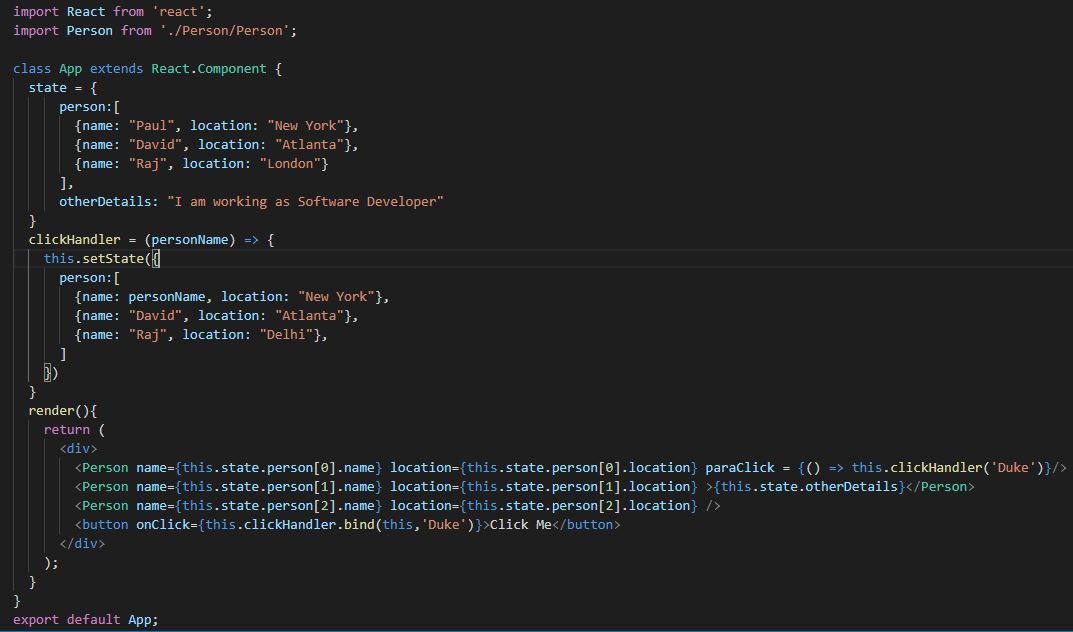
I have demonstrated both the approaches in App.js file. I am using bind method with button click and arrow function with paragraph click. But this combination is not necessary. You can do vice-versa as well.
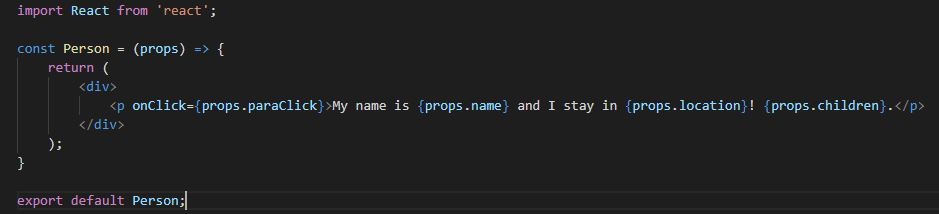
We do not need to modify Person.js Component.
Modify App.js as per following code
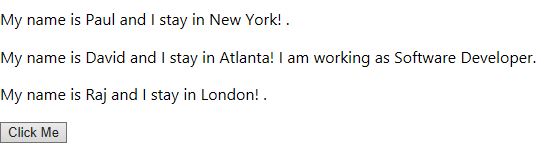
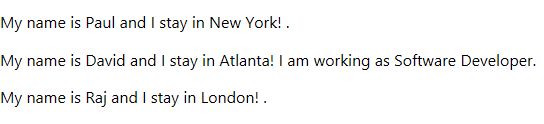
Output before the click
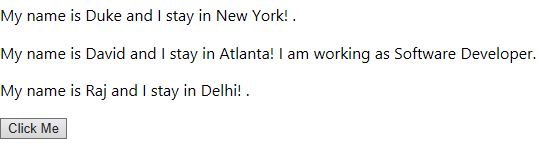
Output after the click
bind(this, listOfArguments): list of arguments to be passed in the function.
We have created a function in parent component and we want to use that function in child component. For this, we pass methods from parent component to child components as reference using props.
Let’s make a call to the function by clicking a paragraph in one of the child component.
Persons.js
import React from 'react';

const Person = (props) => {
    return (
        <div>
         My name is {props.name} and I stay in {props.location}! {props.children}.
        </div>
    );
}

export default Person;
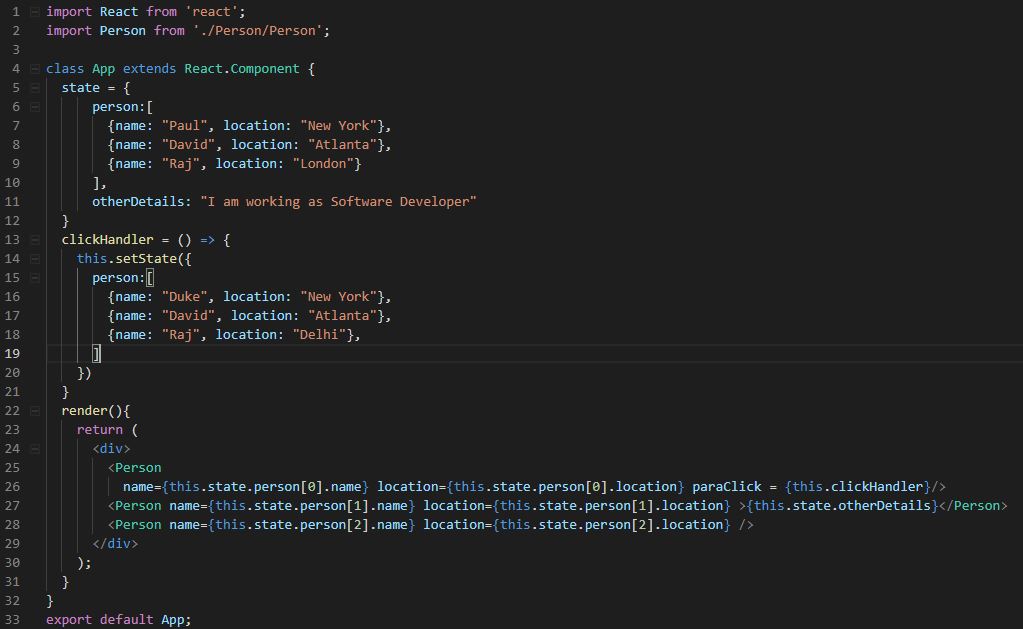
App.js: The method gets called when you click on the first paragraph.
import React from 'react';
import Person from './Person/Person';

class App extends React.Component {
  state = {
      person:[
        {name: "Paul", location: "New York"},
        {name: "David", location: "Atlanta"},
        {name: "Raj", location: "London"}
      ],
      otherDetails: "I am working as Software Developer"
  }
  clickHandler = () => {
    this.setState({
      person:[
        {name: "Duke", location: "New York"},
        {name: "David", location: "Atlanta"},
        {name: "Raj", location: "Delhi"},
      ]
    })
  }
  render(){
    return (
      <div>
        <Person name={this.state.person[0].name} location={this.state.person[0].location} paraClick = {this.clickHandler}/>
        <Person name={this.state.person[1].name} location={this.state.person[1].location} >{this.state.otherDetails}</Person>
        <Person name={this.state.person[2].name} location={this.state.person[2].location} />
      </div>
    );
  }
}
export default App;
Output before clicking the first paragraph
Output after clicking the first paragraph
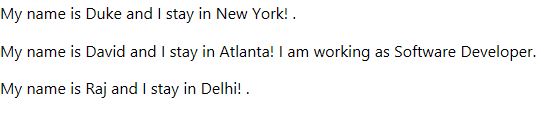
There will be no changes if you click other paragraphs.
Let’s continue with state & props article.
we will not make any changes in Person.js class

Replace the code in App.js file with the below code:
import React, {useState} from 'react';
import Person from './Person/Person';

const App = props => {
  const [personState, setPersonState] = useState({
      person:[
        {name: "Paul", location: "New York"},
        {name: "David", location: "Atlanta"},
        {name: "Raj", location: "London"}
      ],
      otherDetails: "I am working as Software Developer"
  });

  const buttonClickHandler = () => {
    setPersonState({
      person:[
        {name: "Duke", location: "New York"},
        {name: "David", location: "Atlanta"},
        {name: "Raj", location: "Delhi"},
      ],
      otherDetails:personState.otherDetails
    });
  };

  return (
    <div>
      <Person name={personState.person[0].name} location={personState.person[0].location} />
      <Person name={personState.person[1].name} location={personState.person[1].location} >{personState.otherDetails}</Person>
      <Person name={personState.person[2].name} location={personState.person[2].location} />
      <button onClick={buttonClickHandler} >Click Me</button>
    </div>
  );
}
export default App;

Below is the output before clicking the button:

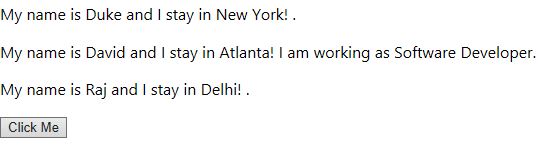
Below is the output after clicking the button

You can see that “I am working as Software Developer” statement is gone after clicking the button. This is because of useState() hook as it REPLACES the old state with the new state. If you want all states to be included, you have to manually make sure to include other states.
Below line of code make sure to include the original data of the state.

We can handle events in React like Click events, Keyboard events, Form events, Focus events, Mouse events etc. Here is the official documentation of events in React.
Let’s see a sample of button click event. Continue with state and props article.
In this example, we will change the state of the component using setState() function. We use setState() method to update the state property hence updating the DOM. setState() takes an object as argument and MERGES this argument with the existing state.
In the state and props article, we have defined two state properties: person and otherDetails. Hence if we modify person property, it will look for the changes only in persons property and leave otherDetails property as it is.
Below is the code in App.js file. The changes are done only in App.js file. No code changes are done in Person.js.
import React from 'react';
import './App.css';
import Person from './Person/Person';

class App extends React.Component {
  state = {
    person:[
      {name: "Paul", location: "New York"},
      {name: "David", location: "Atlanta"},
      {name: "Raj", location: "London"}
    ],
    otherDetails: "I am working as Software Developer"
  };

  buttonClickHandler = () => {
    this.setState({
      person:[
        {name: "Duke", location: "New York"},
        {name: "David", location: "Atlanta"},
        {name: "Raj", location: "Delhi"},
      ]
    })
  }

  render(){
    return (
      <div>
        <Person name={this.state.person[0].name} location={this.state.person[0].location} />
        <Person name={this.state.person[1].name} location={this.state.person[1].location} >{this.state.otherDetails}</Person>
        <Person name={this.state.person[2].name} location={this.state.person[2].location} />
        <button onClick={this.buttonClickHandler} >Click Me</button>
      </div>

    );
  }
}

export default App;
Below is the default output, before clicking the button.
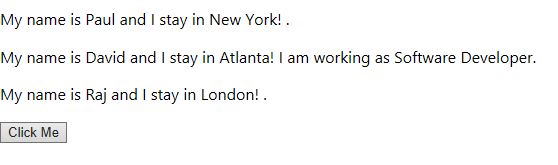
Below is the output after we click the button
Below is a sample program where we can use state and props among class components and functional components.
I have created a new folder named Person.
Create a new file named Person.js in Person folder and below code in it. This is a functional component and we are using props in this. props.children displays the value that we pass between child component tags in the parent component.
import React from 'react';

const Person = (props) => {
    return (
        <div>
          My name is {props.name} and I stay in {props.location}!  {props.children}.
        </div>
    );
}

export default Person;
Paste the below code in App.js file.
import React from 'react';
import ReactDOM from 'react-dom';
import './App.css';
import Person from './Person/Person';

class App extends React.Component {
  state = {
    person:[
      {name: "Paul", location: "New York"},
      {name: "David", location: "Atlanta"},
      {name: "Raj", location: "London"}
    ],
    otherDetails: "I am working as Software Developer"
  };

  render(){
    return (
      <div>
        <Person name={this.state.person[0].name} location={this.state.person[0].location} />
        <Person name={this.state.person[1].name} location={this.state.person[1].location} >{this.state.otherDetails}</Person>
        <Person name={this.state.person[2].name} location={this.state.person[2].location} />
      </div>
    );
  }
}

export default App;
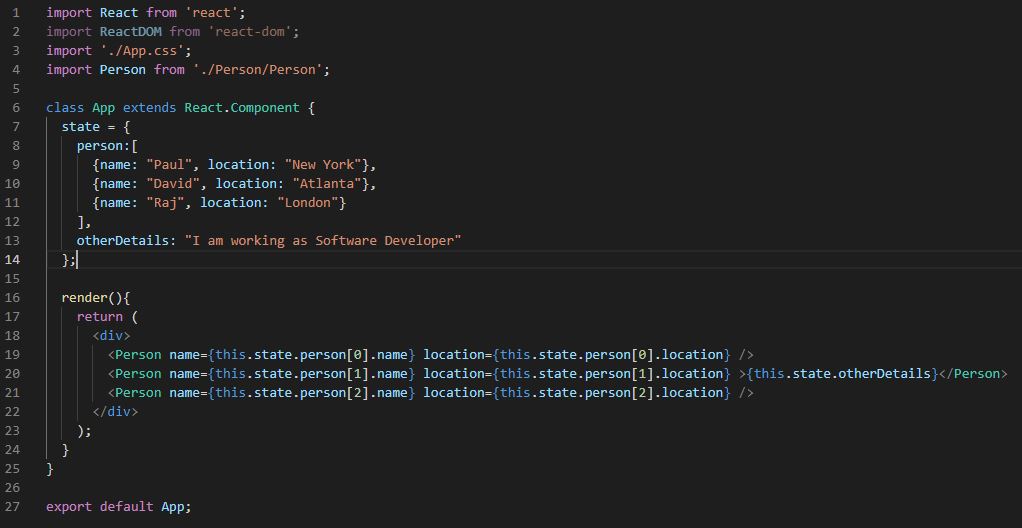
Below is the output of above code

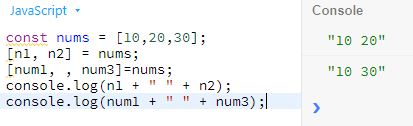
Destructuring allows you to extract array elements or object properties and store them in variables.
const nums = [10,20,30];
[n1, n2] = nums;
[num1, , num3]=nums;
console.log(n1 + " " + n2);
console.log(num1 + " " + num3);
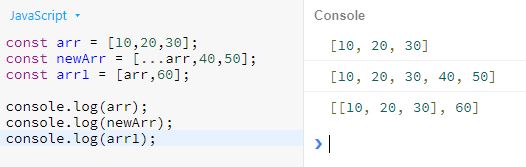
const arr = [10,20,30];
const newArr = [...arr,40,50];

console.log(arr);
console.log(newArr);
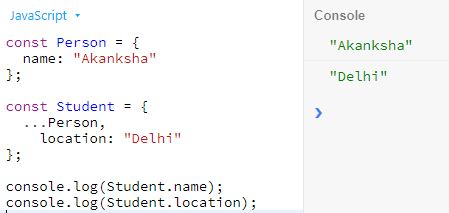
const Person = {
  name: "Akanksha"
};

const Student = {
  ...Person,
    location: "Delhi"
};

console.log(Student.name);
console.log(Student.location);
const PersonDetails = (...details) => {
  console.log("Name: " + details[0]);
  console.log("Address: " + details[1]);
  console.log("Education: " + details[2]);
  console.log("Others: " + details[3]);
}
PersonDetails("Akanksha","Delhi","Graduation");

Start or Upgrade your Career with Power Platform
Python | Azure | AI/ML | OpenAI | MLOps
 Akanksha's Blog