Refer JS variable or function in JSX in ReactJS

When we write our code, we sometimes want to keep some text dynamic rather than static. For example, text of a button or label.

Below is an example to show how to use a JavaScript variable in JSX code. We simply place the JavaScript variable inside curly braces {}.

// Import the React and ReactDOM libraries
import React from 'react';
import ReactDOM from 'react-dom';

// defining a javascript function
function getButtonText(){
    return "Text from function";
}

// Create a React component. This is a function based component.
const App = function() {
    var btnTxt = "Submit";
    return (
<div>
            <label class="label" htmlFor="emailId">Enter Email: </label>
            <input id="emailId" type="text" />
            <button style= {{backgroundColor:"red", color:"white"}}> {btnTxt} </button>
            <button style= {{backgroundColor:"blue", color:"white"}}> {getButtonText()} </button> 
        </div>
    );
};

// Take the React component and display it on the screen. 
// There is div element with id='root' present in index.html in public folder.
ReactDOM.render(
    <App />,
    document.getElementById('root')
);

You can use any type of variable like number, array etc, but you cannot use object.

const btnTxt = 123456;
const btnTxt = "7576hjgj";
const btnTxt = ['Hi','Hello']; //Text displayed on button will be "HiHello"
const btnTxt = ['Hi',1234]; //Text displayed on button will be "Hi1234"
const btnTxt = [100,200]; //Text displayed on button will be "100200"
const btnTxt = {text:"Click Me!"}; //This piece of code will give error as it will not accept code
If you want to use this, you need to make changes to the JSX code. 
<button>btnTxt.text</button>

You will get bellow error if you use JavaScript Object variable in JSX

Other related articles

Introduction to ReactJS
ReactJS Environment Setup
Introduction to JSX
Styling in JSX

Styling in JSX in ReactJS

Let’s see how to do the styling of HTML elements in JSX.

Below is a code in HTML with styling


<div>
   <label class="label">Enter Email: </label>
   <input id="emailId" type="text" />
   <button style="background-color: red; color: white;>Subscribe</button>
</div>


If you insert above HTML code in your React application, you will get error like the below one

Let’s convert the styling as per JSX styling standards
Below is the converted code in JXS


<div>
    <label className="label">Enter Email: </label>
    <input id="emailId" type="text" />
    <button style= {{backgroundColor:'red', color:'white'}}>Subscribe</button>
</div>


Here we can see the difference between two statements

<button style="background-color: red; color: white;">Subscribe</button>
<button style= {{backgroundColor:'red', color:'white'}}>Subscribe</button>

Below is the difference:

  • double quotes (“) at the starting and end are replaced by curly braces ({}).
  • We do not use semicolons(;) to separate and end the properties. We just use comma(,) to separate the properties.
  • The value of properties are enclosed in single quotes(‘) OR double quotes(“) to make them string.
  • If there is any property name like background-color, hyphen(-) is removed and the property is renamed as per CamelCase standards, like backgroundColor.
  • To indicate a CSS class for any element in JSX, we use className instead of class. We already use class keyword to define a class in our JavaScript code.

If you use this code, and write this code in index.js file. htmlFor is used so that we can map label tag with input tag

// Import the React and ReactDOM libraries
import React from 'react';
import ReactDOM from 'react-dom';

// Create a React component. This is a function based component.
const App = function() {
    return (      
<div>
            <label className="label">Enter Email: </label>
            <input id="emailId" type="text" />
            <button style= {{backgroundColor:'red', color:'white'}}>Subscribe</button>
        </div>
    );
};

// Take the React component and display it on the screen. 
// There is div element with id='root' present in index.html in public folder.
ReactDOM.render(
    <App />,
    document.getElementById('root')
);

the error message will not be displayed anymore and you will see the below output.

If you click on Enter Email, focus is moved to the textbox.

Introduction to JSX in ReactJS

Before going through this article, kindly first read below articles:

  • JSX is also known as JavaScript Syntax Extension which is an extension to the syntax of JavaScript.
  • Browsers don’t understand JSX code. We first write JSX then run tools like Babel to turn it into normal JavaScript.
  • It is faster as it performs optimization while compiling the code to JavaScript and most of the error are caught during compilation.
  • It looks like HTML and can be placed in JavaScript code.
  • It determines the content of the React app just like normal HTML.
  • Styling in JSX is a little different than HTML.
  • Below is a sample JSX code
const App = function() {
    return <div>Hello World!</div>;
};

This looks a lot like HTML code, but is a JSX code.
Let’s see why use of JSX is recommended in React.

  • Open Babel home page.
  • Click on Try it out option on top of the page.
  • Paste your JSX code on left side, you will see the converted code on the right side.
  • You can see that JSX code is much easy to write, understand and manage.

Sample Program in ReactJS

Let’s continue with our previous article: ReactJS Environment Setup where we have created a ReactJS application which has the default code, how to start and stop it, and various files that exist in the application.

Let’s change the default code in the application and write our own code to create an application. Start the application and do not close it. Whatever change you make in the code, once you save it, it will automatically gets reflected in the browser.

Follow the below steps:

  • Delete all the files in src folder.
  • Create a new file in src folder: index.js. The browser will display nothing as there is no code to display.
  • Write the following code in index.js file. import the necessary libraries or other dependencies.
// Import the React and ReactDOM libraries
import React from 'react';
import ReactDOM from 'react-dom';

// Create a React component. This is a function based component.
const App = function() {
    return <div>Hello World!</div>;
};

// Take the React component and display it on the screen. 
// There is div element with id='root' present in index.html in public folder.
ReactDOM.render(
    <App />,
    document.getElementById('root')
);

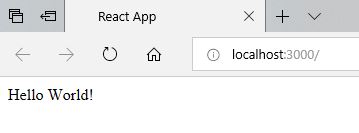
Below is the output of above code

import in ReactJS

Before performing the import, we need to install the library using npm. Most of them are already installed while installing create-react-app.

You will find these libraries or dependency files in node_modules folder of your application. You can import any file or dependency that is available in this folder in your code. You can also install more files in this folder.

Here, we have explained the import statement in ReactJS code. Below is an import statement to import react library.

import React from 'react';
  • import: We use this if we want to get the code from some other file or dependency.
  • React: This is a variable name we want to assign this import to.
  • from: We are about to specify the name of the library or file we are importing from.
  • ‘react’: The name of the dependency or path to the file we are importing.

Below are other import statements that we will be using across various applications

import ReactDOM from 'react-dom';
Other related articles

Error: localhost:3000 doesn’t work

There can be a case when you start your application, localhost:3000 will open in browser but nothing is displayed.

The workaround for this is go back to NodeJS Command prompt.

Copy http://192.168.220.1:3000/ (this can be different on your machine) and paste it in on browser.

You will be able to see the content of your application in the browser.

Error: Something is already running on port

Sometimes we can get a message “Something is already running on port”

To resolve this error, you can either

  • Close the application that is running on the specified port and start this application again.
  • Type Y and start this application on another port.
  • Type N to exit the process. In this case, application will not be started.

Introduction to ReactJS

  • ReactJS is a front-end library developed by Facebook.
  • It handles the View layer of web and mobile applications.
  • We can also create reusable UI components.
  • ReactJS is used to show content (HTML) to users and handle user interaction.
  • ReactJS is a declarative, efficient, and flexible JavaScript library for building user interfaces.
  • Components in React
    • It lets you compose complex UIs from small and isolated pieces of code called components.
    • Everything in ReactJS is components. It helps in maintaining the large code.
    • A component is a function or class that produces HTML to show the user (using JSX) and handles feedback from the user (using Event Handlers).
    • React components are made using JavaScript functions or classes.
  • React can work by itself, but it can also work with other libraries, packages, databases and servers.
  • JSX (JavaScript Syntax Extension) is recommended to be used with ReactJS.
  • ReactJS implements one-way data flow using Flux.
  • ReactJS uses JavaScript virtual DOM to improve the performance of ReactJS apps.
  • We can use ReactJS with both client side and server side.
  • ReactJS covers only the view part of your app. You need to choose other technologies for the logical part of your app.
  • Before moving forward, let us setup the environment to develop ReactJS Apps. You can use any editor to create the apps. I will be using Visual Studio Code.
  • React is separated into two libraries
    • React knows what a component is and how to make components work together.
    • ReactDOM knows how to take a component and make it show up in the DOM.
  • We can use CDN links for React and ReactDOM for our application.

Modules in TypeScript

  • A module is designed to organize the code written in TypeScript.
  • There are two types of modules
    • Internal Modules
    • External Modules
Internal Modules
  • They are used to group classes, interfaces and functions in one group and can be exported to another module.
  • There functionality is pretty much similar to namespaces.
  • Internal Modules are still used in some code, but we prefer using namespaces now.
  • Syntax
        module ModuleName{
            export class className{
               // statements
            }
        }
 
External Modules
  • The are used to specify and load dependencies in multiple .js files.
  • External modules are not used when there is only one .js file.
  • Traditionally we use <script> tags to load .js file in a particular order, but these tags are not available every time, like in NodeJS.
  • There are two ways of loading dependent .js files from a single .js file
    • Client Side – RequireJS
    • Server Side – NodeJS
  • The syntax for declaring an external module is using keyword export and import.

Module Loader

  • To load JavaScript files externally, we need a module loader.
  • Module Loader is another .js library.
  • Most common module loader we use is RequireJS. This is an implementation of AMD (Asynchronous Module Definition) specification.
  • Instead of loading files one after the other, AMD can load them all separately, even when they are dependent on each other.

Namespaces in TypeScript

  • Namespace is used to group logically related code.
  • When we have multiple files with globally declared variables, there may be a possibility of overwriting or misusing these variables.
  • We use namespaces to solve this issue.
  • Namespace definition begins with namespace keyword followed by the namespace name.
  • Syntax: namespace namespaceName{ //code for namespace }
  • We define classes and interfaces within a namespace.
  • If we want to access these classes and interfaces from outside of namespace, they should be exported using export keyword.
  • To access the class or interface from another namespace, we use this syntax: namespaceName.className;

Below is the example
We have created two files: Namespace1.ts and Namespace2.ts

Namespace1.ts
namespace namespace1{
    export class Car{
        model:string;
        color:string;
        constructor(m:string, c:string){
            this.model = m;
            this.color = c;
        }
        carDetails():void{
            console.log(this.model + " is available in " + this.color + " color.")
        }
    }
    var myCar = new Car("Swift","Silver");
    myCar.carDetails();
}
Namespace2.ts
/// <reference path = "Namespace1.ts" />
namespace namespace2{
    console.log("\nIn Namespace2.ts file");
    var maruti = new namespace1.Car("Brezza","White");
    maruti.carDetails();
}

Now open Node.js Command Prompt and type the following two commands

tsc --out myjsfile.js Namespace2.ts
node myjsfile.js

Below is the output in Node.js Command Prompt

Power Platform Academy

Start or Upgrade your Career with Power Platform

Learn with Akanksha

Python | Azure | AI/ML | OpenAI | MLOps

Design a site like this with WordPress.com
Get started