Verbatim Strings

When you prefix a string literal with the @ symbol, you have created what is termed a verbatim string.
Using verbatim strings, you disable the processing of a literal’s escape characters and print out a string
as is. This can be most useful when working with strings representing directory and network paths.
Therefore, rather than making use of \\ escape characters, you can simply use @

Below is the sample code:

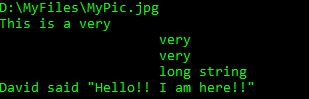
Console.WriteLine(@"D:\MyFiles\MyPic.jpg");
string myLongString = @"This is a very
    very
    very
    long string";
Console.WriteLine(myLongString);
Console.WriteLine(@"David said ""Hello!! I am here!!""");

Below is the output of above code:

Escape Sequence in C#

C# contains various escape characters, which defines how the data should be printed on the output stream. Each escape character begins with a backslash, followed by a specific token.

Below is a table explaining the escape characters:

Escape Character Description
\’ Inserts a single quote into a string literal
\” Inserts a double quote into a string literal
\\ Inserts a backslash into a string literal. Used in defining file paths etc.
\a Triggers a System sound.
\n Inserts a new line
\r Inserts a carriage return
\t Inserts a horizontal tab into a string literal

Below is the sample code explaining the above escape characters:

Console.WriteLine("\"Hello World\"");
Console.WriteLine("\'Hello World\'");
Console.WriteLine("D:\\MyFiles\\MyPic.jpg");
Console.WriteLine("System Sound: \a");
Console.WriteLine("Hello\nNew Line");
Console.WriteLine("Orange\tYellow\tRed");

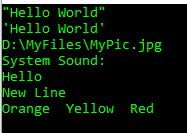
Below is the result of above code. You will also hear a system sound when this code is run.

Difference between Equals() and == in C# String

Equals() method and == sign are equality operators. The difference is that Equals() method is used to compare two strings that too only content where as == is used to compare two objects of any data type and compares the reference identity.

Lets see few examples:

String val1 = "Hello";
String val2 = "Hi";
Console.WriteLine("s1 = {0}", val1);
Console.WriteLine("s2 = {0}", val2);
Console.WriteLine();
Console.WriteLine("s1 == s2: {0}", val1 == val2);
Console.WriteLine("s1 == Hello: {0}", val1 == "Hello");
Console.WriteLine("s1 == HELLO: {0}", val1 == "HELLO");
Console.WriteLine("s1 == hello: {0}", val1 == "hello");
Console.WriteLine("s1.Equals(s2): {0}", val1.Equals(val2));
Console.WriteLine("Hi.Equals(s2): {0}", "Hi".Equals(val2));

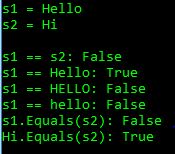
Below is the result of the above code:

String name = "David";
char[] arrName = {'D','a','v','i','d'};
object myName = new String(arrName); 
Console.WriteLine("Result using == operator: {0}", myName == name);
Console.WriteLine("Result uisng Equals() method: {0}", myName.Equals(name));

Below is the result of above code:

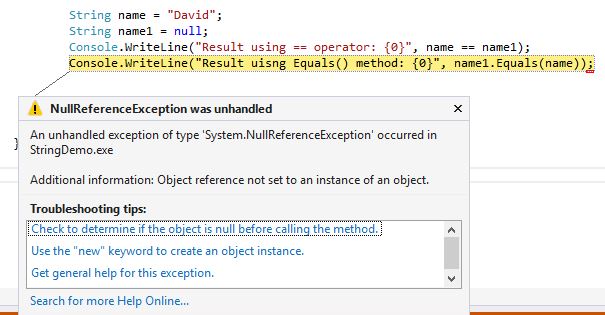
null.Equals(value); returns the NulReferenceExceltion whereas value.Equals(null); returns the bool value. == operator can have null value on either side of the operator.
Below is a sample code: 

String name = "David";
String name1 = null;
Console.WriteLine("Result using == operator: {0}", name == name1);
Console.WriteLine("Result uisng Equals() method: {0}", name1.Equals(name));

Below is the result of the above code:

Strings in C#

String is nothing but a collection of characters be it collection of alphabets, alphanumeric or include special symbols. String is always enclosed within double quotes. Examples of String are: “Hello”,”Hello World!”,”P@ssw0rd2018″ etc.

We can do lots of manipulation on these string values. System.String provides a number of methods that we can use to manipulate these values. Lets see how to do that. I am creating a Console Application StringDemo.

Assign value to a string variable:

String value = "Hello World";

Concat()
We can concatenate two or more string values in one using plus (+) sign or using
Concat function.

String val1 = "My name is";
String val2 = "David";
String val3 = "Miller";
String val4 = val1 + " " + val2 + "!";
Console.WriteLine("Concatenated Value using + sign: " + val1 + " " + val2);
Console.WriteLine("Value of val4: " + val4);
String val5 = String.Concat(val1, " ",val2, " ", val3);
Console.WriteLine("Concatenated value using Concat function: " + val5);

Below is the result of the above code:

Length
Length is used to calculate the number of characters that are there in the string. It also counts the space characters. Result of below code is:

String value = "Hello World";
Console.WriteLine("Length of " + value + "is: " + value.Length);

Below is the result of the above code:

Compare()
C# is case-sensitive. Hence Hello is different from hello. Compare function is used to compare two strings. This function returns an integer value. If this returns 0, he values are same. If this returns 1, values are different. Below is the sample code:

String val1 = "Hello";
String val2 = "Hello";
String val3 = "hello";
int result = String.Compare(val1, val3);
int result1 = String.Compare(val1, val2);
int result2 = String.Compare(val1, val3, true);
Console.WriteLine("Comparison of Hello and hello: " + result);
Console.WriteLine("Comparison of Hello and Hello: " + result1);
Console.WriteLine("Comparison of Hello and hello, ignored the case: " + result2);

Below is the result of the above code:

Contains()
This method determines whether a string contains a specified substring. It will return a bool value, either true or false.
Below is a sample code:

String val = "Hello World";
bool result = val.Contains("Wor");
bool result1 = val.Contains("Hi");
Console.WriteLine("Hello World contains Wor? " + result);
Console.WriteLine("Hello World contains Hi? " + result1);

Below is the result of the above code:

Insert()
Insert() method inserts a specified string within a string at a given index. The index starts with 0.

String original = "HelloWorld!";
Console.WriteLine("The original string: '{0}'", original);
String updated = original.Insert(5, " ");
Console.WriteLine("The modified string: '{0}'", updated);
String updated1 = original.Insert(5, " Big ");
Console.WriteLine("The modified string: '{0}'", updated1);

Below is the result of above code:

PadLeft(), PadRight()
These methods are used to pad a character either left or right of a string.
Below is the sample code:

String name = "David";
char char1 = '*';
Console.WriteLine(name.PadLeft(15, char1));
Console.WriteLine(name.PadLeft(3, char1));
Console.WriteLine(name.PadRight(15, char1));
Console.WriteLine(name.PadRight(6, char1));

Below is the output of above code:

Insert(), Remove(), Replace()
Insert() method is used to insert a given string into another string at a specific index.
Remove() method is used to delete a specified number of characters from a specified string.
Replace() method is used to replace all occurrences of a specified character with another character in a specified string.
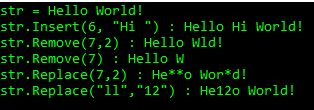
Below is the sample code for above method:

String str = "Hello World!";
Console.WriteLine("str = " + str);
Console.WriteLine("str.Insert(6, \"Hi \") : " + str.Insert(6, "Hi "));
Console.WriteLine("str.Remove(7,2) : " + str.Remove(7,2));
Console.WriteLine("str.Remove(7) : " + str.Remove(7));
Console.WriteLine("str.Replace(7,2) : " + str.Replace('l','*'));
Console.WriteLine("str.Replace(\"ll\",\"12\") : " + str.Replace("ll","12"));

Below is the result of above code:

Split()
This method is used to split a string in an array.
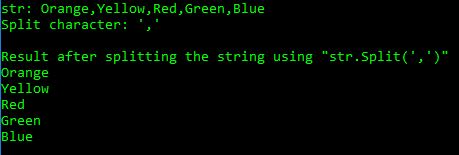
Below is the sample code for above method:

String str = "Orange,Yellow,Red,Green,Blue";
String[] colors=str.Split(',');
Console.WriteLine("str: " + str);
Console.WriteLine("Split character: \',\'");
Console.WriteLine();
Console.WriteLine("Result after splitting the string using \"str.Split(\',\')\"");
foreach(String s in colors)
{
    Console.WriteLine(s);
}

Below is the result of the above code:

Trim()
Trim() removes all the leading and trailing white-space characters from the string.
Below is the sample code:

String str = " Hello World ";
Console.WriteLine("str: " + str + "!");
Console.WriteLine("str.Trim(): " + str.Trim() + "!");

Below is the result of above code:

ToUpper(), ToLower()
ToUpper() is used to convert the complete string in upper-case.
ToLower() is used to convert the complete string in lower-case.
Below is the sample code:

String str = "Hello World!";
Console.WriteLine("str: " + str);
Console.WriteLine("str.ToUpper() : " + str.ToUpper());
Console.WriteLine("str.ToLower() : " + str.ToLower());

Below is the output of above code:

Variable Declaration and Initialization in C#

Let’s see how to declare and initialize variables in C#.

A variable is a name given to a memory location where the value is stored. These variables have a data type based on the value stored in them.

Syntax for variable declaration: data_type variable_name;
Example for variable declaration: int age;
NOTE: You will get compilation error if you use a variable before assigning an initial value.

To avoid this compilation error, you can assign a default value to the variable at the time of declaration. You can combine variable declaration and initialization in the same line. You assign a value to a variable using = sign.
For example: int age = 20;

Below is sample code:


Sample Console Aplication

C# programs can be created in many ways like Windows Forms Application, Console Application etc. Let’s create a sample console application “Hello World”. I am using Microsoft Visual Studio Ultimate 2013.

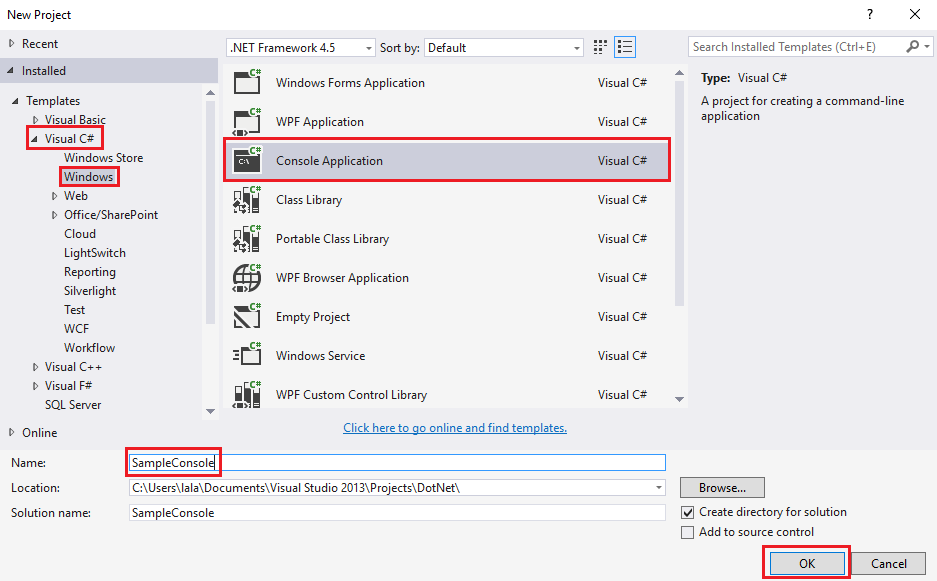
    • Open Visual Studio –> Click on New Project.
    • Select Console Application from the given templates. Give your project a friendly name, without any spaces. Click OK. This will create a new project.

      • When the project is created, you will see the below screen. The default class is Program and default function is Main() which defines the entry point of the application.

    • Copy the below code in your Main() function.
      Console.WriteLine("Hellow World!");
      Console.ReadLine();
      Your program will look like:


Console.Write() writes the text representation of the specified value or values to the standard output stream.
Console.WriteLine() writes the text representation of the specified object, followed by the current line terminator, to the standard output stream.
Console.Readline() reads the next line of characters from the standard input stream.

    • Press F5 to run the program. You will see below output on Command Prompt.

Miscellaneous Points – DotNet

  • In C#, it is not possible to create global functions or global points of data. Rather all data members and all methods must be contained within a type definition like within a class.
  • C# is a case-sensitive language.
  • All C# keywords are lowercase like public, static, class etc., while namespace, types and member name uses CAML-casing like Console, WriteLine, MessageBox etc.
  • Whenever you receive a compiler error regarding “undefined symbols”, be sure to check the spellings and casing first.
  • There can be more than one Main() method in the program, but you must inform the compiler which Main() method should be used as the entry point either via /main option of the command-line compiler or via the Startup Object drop down list box, located under Application tab of Visual Studio project properties editor.
  • Main() method has a single parameter, args[], which is an array of string. This parameter may contain any number of incoming command-line arguments. Main() method is uses static and void keywords. static members are scoped to class level rather than object level, thus can be invoked without the need to first create a new class instance. void return value means we do not explicitly define a return value using the return keyword before exiting the method scope.
  • // is used to make single line comments. /*    */ is used to make multiple line comments.
  • Statements in C# language are terminated by semicolon (;).
  • We cannot define overloaded method if it differs from another method only on out and ref.

Check if value exist in database using C#

Sometimes we need to check whether a value exists in a particular column of database table or not. Below is the C# code for the same:

public static int checkExistingCustomerName(string custName)
{
     string strCmd = "SELECT COUNT(CustomerName) FROM CustomerDetails WHERE CustomerName='" + custName + "'";
     string custID;
     using (OleDbConnection conn = new OleDbConnection(Constants.connectionString))
     {
          try
          {
               OleDbCommand cmd = new OleDbCommand(strCmd, conn);
               conn.Open();
               object obj = cmd.ExecuteScalar();
               if (obj == DBNull.Value || Convert.ToInt32(obj)==0)
                    return 0;
               else
                    return 1;
           }
           catch (Exception ex)
           {
               return 1000;
           }
      }
}

AutoFill the data from a particular column from DataBase into a ComboBox

In this article, we will autofill the CustomerNames from CustomerDetails table in a ComboBox on FormLoad event.
Create a CobmoBox say cmbCustomerName on your form.

Write the following code in the FormLoad event of your code.
Use the code for getCustomerDetails() function from https://tutorials4sharepoint.wordpress.com/2017/11/08/get-all-the-data-from-a-table-in-ms-access-database-using-c-ado-net/ post.

DataTable custDt = new DataTable();
custDt = getCustomerDetails();
cmbCustomerName.DataSource = custDt;
if(custDt!=null)
{
     cmbCustomerName.BindingContext = this.BindingContext;
     cmbCustomerName.DisplayMember = "CustomerName";
     cmbCustomerName.ValueMember = "CustomerID";
     cmbCustomerName.Text = "-Select Option-";
}
else
     cmbCustomerName.Text = "No Customer Data Available!";

Get all the data from a table in MS Access Database using C# ADO.NET

In this article, we will fetch the data from a table of MS Access Database by using ADO.NET C# code. We are using CustomerDetails table here, get the data in a DataTable and return the DataTable for it to be used anywhere in the application. This code returns null if there are no records in the table.

NOTE: If you are using SQL Database, you can replace OleDbConnection, OleDbCommand and OleDbDataReader with SQLConnection, SQLCommand and SQLDataReader respectively.

public static DataTable getCustomerDetails()
{
        string strCmd = "SELECT * FROM CustomerDetails";
        DataTable dt = new DataTable();
        using (OleDbConnection conn = new OleDbConnection(connectionString))
        {
            OleDbCommand cmd = new OleDbCommand(strCmd, conn);
            try
            {
                conn.Open();
                OleDbDataReader reader = cmd.ExecuteReader();
                if (reader.HasRows)
                {
                    dt.Load(reader);
                    return dt;
                }
                else
                    return null;
           }
           catch (Exception ex)
           {
                return null;
           }
      }
}
Power Platform Academy

Start or Upgrade your Career with Power Platform

Learn with Akanksha

Python | Azure | AI/ML | OpenAI | MLOps

Design a site like this with WordPress.com
Get started