In this article, we will see how to send an email from a PowerApp. We will use SharePoint list for this app. Let’s say we want to send birthday wishes to our team members on their email.
Create a SharePoint List
Create a new SharePoint list in SharePoint Online which will have details of the employees. Create new columns and rename Title column with EmployeeId. Enter some dummy data in it. Below is a snapshot of my list.

Create PowerApp
Login to PowerApps (https://web.powerapps.com) with your credentials. You will see the below screen when you first login.

Click on Apps on left navigation bar. Choose Create an app. Click on Canvas.

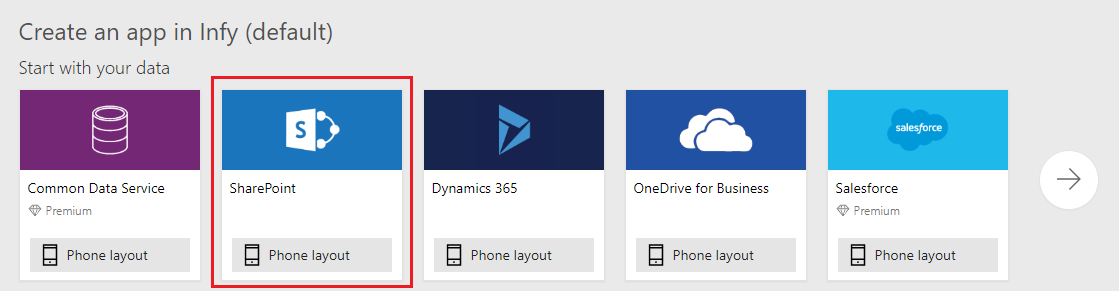
A new window will open. I am using SharePoint List to create this PowerApp, hence will choose SharePoint. Click on Phone Layout.
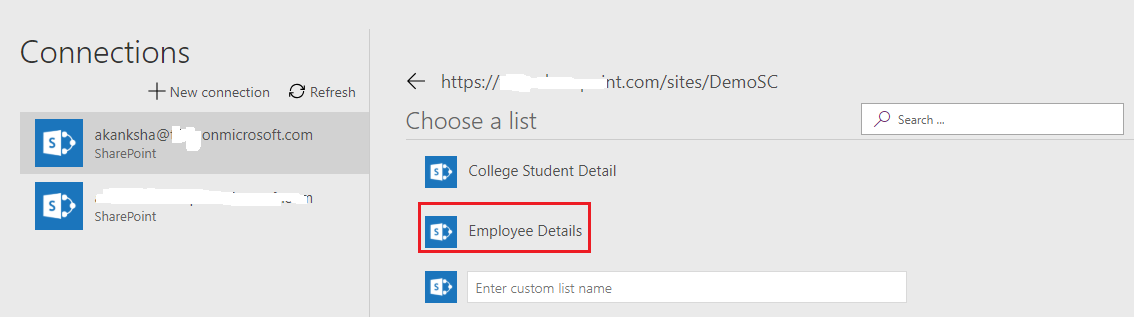
You will be redirected to a Connections page where you will need to create a connection and then choose a SharePoint site collection from which you want to fetch the data. In the below diagram, on the left side you can see the list of existing connections. If your connection does not exist here, click on New Connection to create a new connection.
When you select a connection, a list of recently used site collection appear on the right side. If you are not able to see your site collection, enter the Site Collection URL and click on Go.

When you select a Site Collection, you will see a list of exiting Lists. You can now choose a List. If your list name does not exist, enter the name manually in the given text box. I will be choosing Employee Details here. Once selected, click on Connect on bottom right corner of the screen.
You will see below screen.

- To see the working of the app, click on Play button on top right corner of the app.
- On the left pane, you can see the controls and the screens that are available on the app. Here, you can see Browse Screen, Detail Screen and Edit Screen. Click on each to see their details.
- On the Center, you can see the app on which you can do the modifications.
- On the right side, You can see the settings for each selected item of the app.
- On the top, there is a function bar where you can create functions for a selected control.
- Apart from this, there is a Menu bar (File, Home, Insert, View, Action) with multiple options which we can use throughout our app.
Add buttons and other fields
Select DetailForm1 from left panel. Click on Edit Fields from the right pane.

Once you click Edit Fields, A new window will popup. Click on three dots, the on Add a custom card.

Expand the data card. Click on Insert Menu, Select Button and Text Boxes and place them on the card in the below fashion. You can also rename them from the left panel.

In the text boxes, you can see a text written. This is a HintText which is written to let the user know what to type here. Select the control, then select HintText from the drop down and type the text in double quotes. You can also set some default text if you want.


Add a Data Source
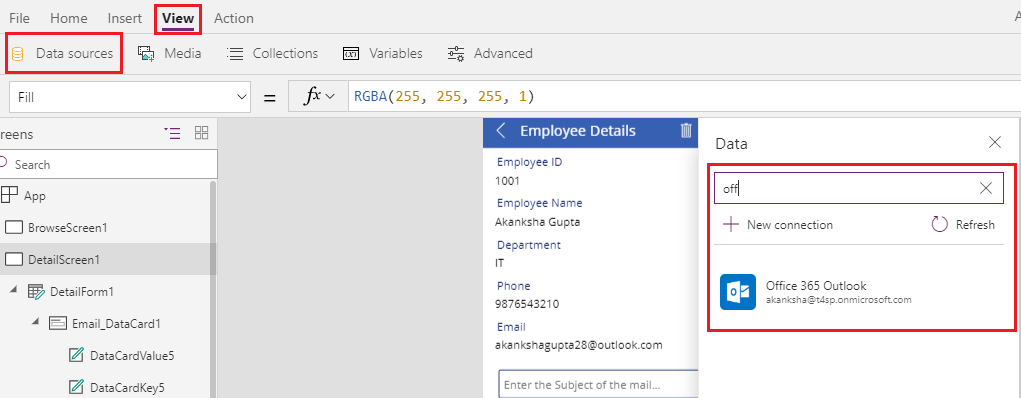
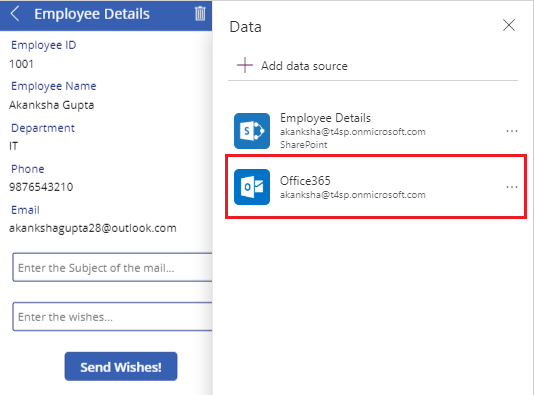
As we want to send an email when we click on a button, we have to add a data source of Office 365. Click on View menu –> Data Sources. Click on Add data source. Select Office 365.
NOTE: If you are not able to add data source using this method, click here to see new steps to add a data source in your Power App.
Write the Send Email formula
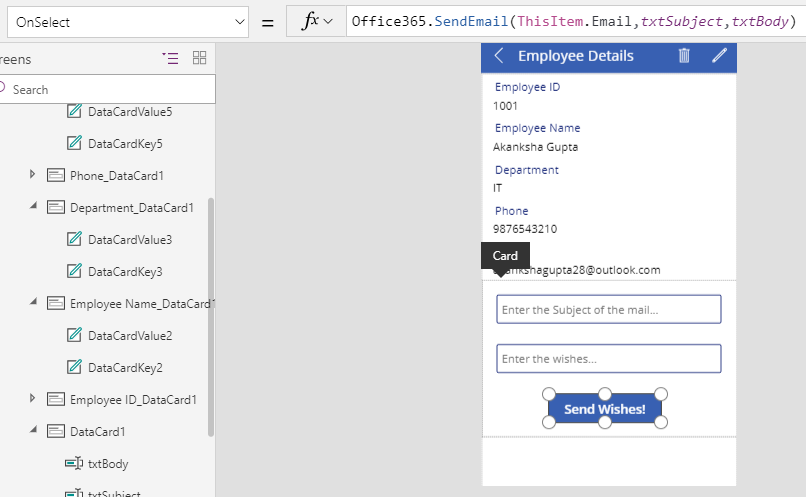
- Now select the button, and write a formula on formula bar.
- First Parameter is To. We will pick the Email ID from the current item’s Email column.
- Second Parameter is Subject. We will pick this from the textbox that we have created, txtSubject.
- Third Parameter is Body. We will pick this from the textbox that we have created, txtBody.
- If you put comma after this, you will get other options to add attachments, CC or BCC.
Test the PowerApp
Select the BrowseScreen1 from the left pane and select Play button from the top right corner of the screen. You will see the data from the SharePoint List. Select one of the contacts and write your wished and click on the button.

The mail will be received in the mailbox.




 Akanksha's Blog