Introduction to PowerBI Desktop

  • PowerBI Desktop is a free windows desktop application which we can install on our local computer that lets us to connect to our data, transform and visualize it.
  • With MS PowerBI desktop application, we can connect to different data sources, combine them into a data model that lets us build visuals.
  • We can share this collection of visuals as reports with other users within our organization using PowerBI Service (Online version).
  • You can download and install it from here.
Welcome Screen

When you start PowerBI Desktop, you will see below Welcome Screen. You can Get Data, see Recent sources, open the reports that you have recently worked upon or can also open other reports by using the left pane. You can also look for other options like tutorials, blog, forums etc. on center and right side of this screen.

When you close the Welcome screen, you will see the Report view of PowerBI Desktop.

The three buttons on the left bar represent three views that are available in PowerBI Desktop: Report, Data and Relationships. The default view is the Report view. You can select whatever view you want. The Yellow Bar indicates the current view that is displayed.

You can view your current data in Data view, create relationships between different DataSets in Relationships view and create reports using this data in Report view.
Building blocks of PowerBI

The building blocks in PowerBI is used to create complex reports.

Let’s take a closer look at the building blocks:

Visualizations

Visualization is a visual representation of data. This visual representation can be in form of charts, map or anything else that represent the data visually. Below is a visual representation of Customer Profitability Sample data.

DataSets

A DataSet is a collection of data that is used by PowerBI to create visualizations. A DataSet can be anything from a simple Excel workbook to online data from any other source.

Reports

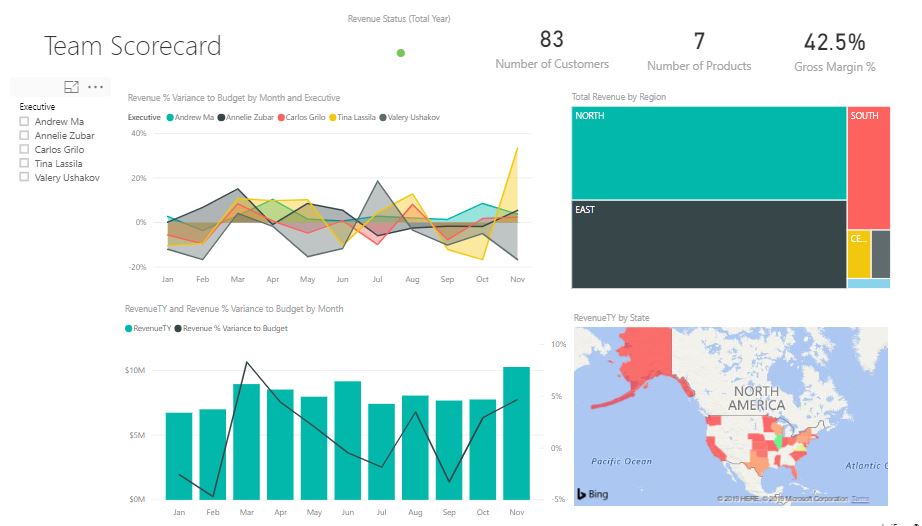
A Report is a collection of visualizations that appear together on one or more pages. Items in a report are related to each other. We can create reports in PowerBI Desktop or PowerBI Service. Below is a report developed in PowerBI Desktop.

Dashboards

When all the reports and visualizations are ready and we want to share them with other users, we create Dashboards. Dashboard should fit in a single page, called as canvas.

Tiles

A Tile is a single visualization on a report or a dashboard. It is a rectangular box that holds an individual visual. We can move these tiles wherever we want within a report or dashboard or change their size.

Sample Report in PowerBI

  • Let’s create a sample report using PowerBI Desktop and publish it onto PowerBI Online.
  • For this, I am using the Financial Sample Workbook available on Microsoft Docs. You can get it from here.
  • Download the Excel file and save it on your desktop.
  • Analyze the Excel carefully and see what are the useful reports that you can make from it.
  • We have Sales Data in this file.
  • Open PowerBI Desktop.
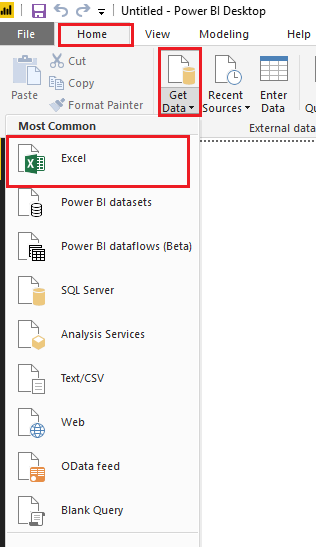
  • Go to Home –> Get Data. Click on Excel.
  • Open the downloaded Financials file. Select financials table. Load it.
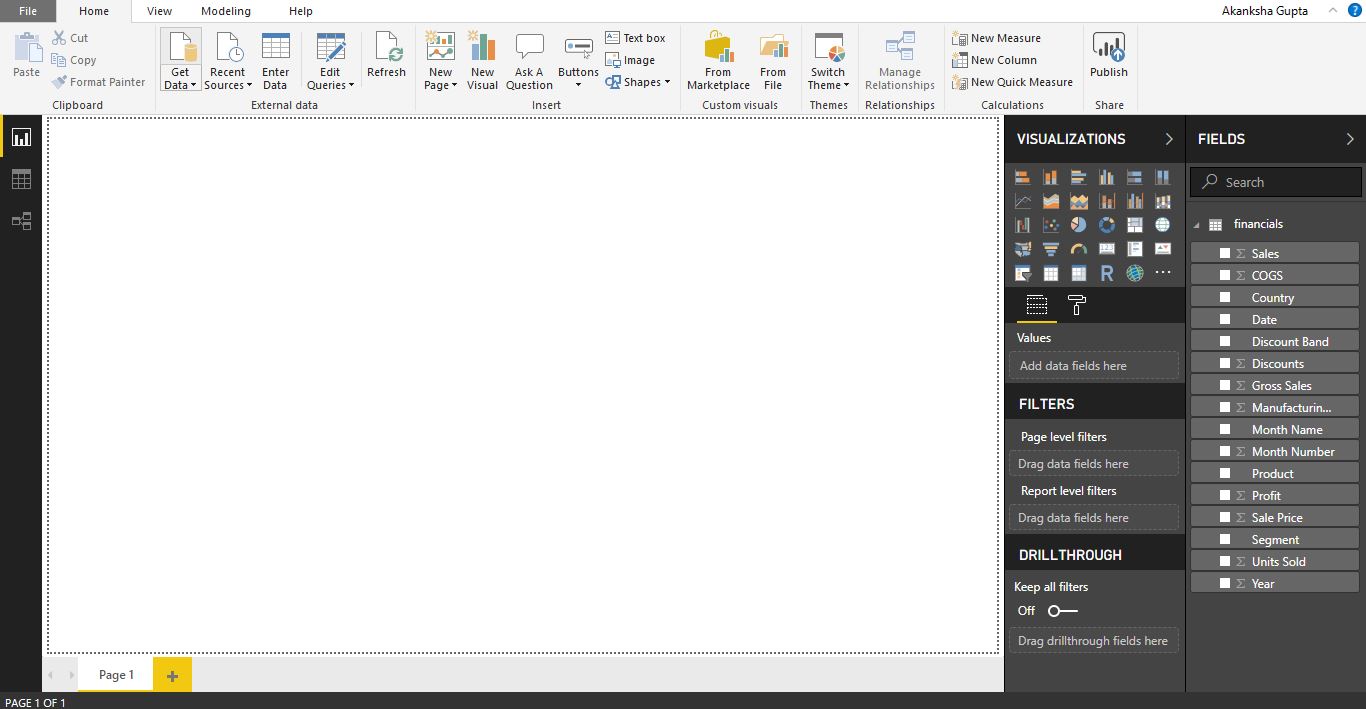
  • This is how it will look by default when a file is loaded.
  • You can see all the column names of the excel on right hand side, under Fields section, from where you can drag and drop them to create the report.
  • Under Visualization section, You can see many options like different types of charts we can create, filters we can apply etc. Remember that the reports and charts that you create from a single database are all interlinked.

  • Drag and Drop Sales field on the report. You will see a Column Chart on the report.
  • Now drag Product field on the same chart. It will look like below.
  • Let’s add a Map on the report. Double click on Map. You will a see a map appearing on the report.
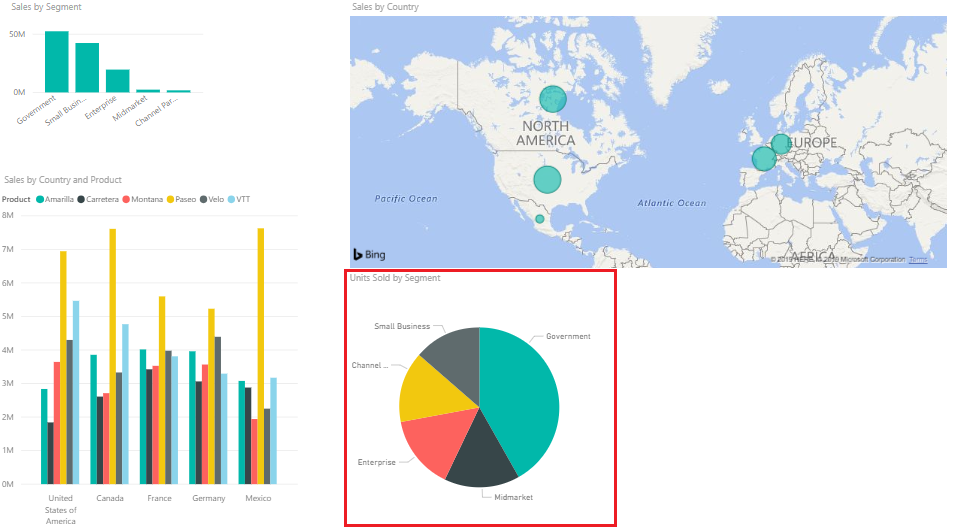
  • Drag the Country field on the Map. Below is how the Map will look highlighting the countries in which the Sales are made.
  • Create one more chart, which will display Sales by Segment.
  • Below is how final Report will look like. You can increase/decrease the size of the charts.

    There reports are interactive. You can select a country and can see the changes in other reports.
  • If you want to Publish this report on PowerBI Service,login to PowerBI Online and click on Save, give a name and Publish.
  • Select a destination where you want to Publish your report. I am publishing it to My Workspace as of now.
  • You will get a Success message when the report is successfully published. You can open the report directly from this message.
  • You will be able to see your report under My Workspaces group in your PowerBI Service. It will work interactively.

Setup PowerBI Desktop and Online

In simple words, Microsoft PowerBI is a collection of software services, apps and connectors that work together to turn your unrelated source of data into coherent, visually impressive and interactive insights.

Whether your data is a simple Microsoft Excel workbook, or a collection of cloud-based and on-premises hybrid data warehouses, Power BI lets you easily connect to your data sources, visualize (or discover) what’s important, and share that with anyone or everyone you want.

PowerBI Desktop
  • PowerBI Desktop is a free windows desktop application which we can install on our local computer that lets us to connect to our data, transform and visualize it.
  • With MS PowerBI desktop application, we can connect to different data sources, combine them into a data model that lets us build visuals.
  • We can share this collection of visuals as reports with other users within our organization using PowerBI Service (Online version).
  • You can download and install it from here.
PowerBI Service
  • This is the Online version of PowerBI.
  • We can Publish the reports that we created using PowerBI Desktop to it.
  • We can also create reports directly using PowerBI Service.
  • It is NOT free like PowerBI Desktop.
  • If you want to include PowerBI with Office 365, you can purchase the license for Office 365 Enterprise E5.
PowerBI Mobile Apps
  • There are mobile apps and are available on Windows phone and tablets, Apple iOS and Google Android devices.
Power Platform Academy

Start or Upgrade your Career with Power Platform

Learn with Akanksha

Python | Azure | AI/ML | OpenAI | MLOps

Design a site like this with WordPress.com
Get started