Sample Web Part in SPFx

Below are the steps to create a sample web part (Hello World) in SharePoint Framework. Mae sure to setup the environment before proceeding.

  • Open Command Prompt
  • Navigate to the directory where you want to create the web part
  • Type the following command
    yo @microsoft/sharepoint
  • You will be prompted to enter few details:
    • The suggested solution name will be same as your directory name. Press enter if you want the same name as your solution name. You can change it if you want.
    • Select SharePoint Only (latest) and press enter.
    • Select Use the current folder to place the files of your project.
    • Type N as we do not want our solution to be deployed immediately to all sites without running any feature deployment or adding apps in sites. Press Enter.
    • Type N as we our solution does not contain any unique permission.
    • Select WebPart as we want to create a web part
    • Accept the default web part name. You can also choose the name you want. Remember that this is the Web Part name. We entered Solution name in the first step.
    • Accept the default web part description. You can give description of your choice.
    • Select the JavaScript framework you want use. You can either choose React or Knockout. You also have the option to not select any JavaScript framework. In this demo, I am not selecting any JavaScript framework.
    • Press Enter.
  • Now, Yeoman installs the required dependencies and scaffolds the solution file along with the web part. This will take some time.
  • Once done, you will get below message.
Test and Preview your SPFx Web Part

Once you get the above message, now install the developer certificate with the following command. This is a one time activity and will be applicable to the complete development environment.

gulp trust-dev-cert

Preview your web part with the following command. This will open the workbench where you can add your web part on the page and preview it.

gulp serve

This command executes a series of gulp tasks to create a local, node-based HTTPS server on localhost:4321 and launches your default browser to preview web parts from your local dev environment.

SharePoint Workbench is a developer design surface that enables you to quickly preview and test web parts without deploying them in SharePoint. SharePoint Workbench includes the client-side page and the client-side canvas in which you can add, delete, and test your web parts in development.

Workbench details are saved in serve.json file in config folder.
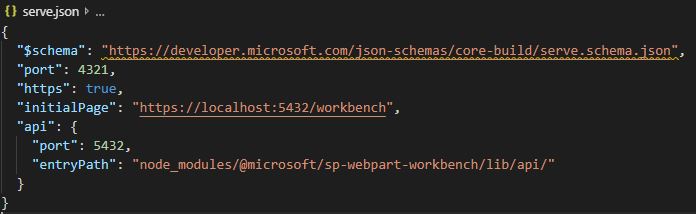
Once the gulp serve command is executed, the local workbench is launched. To add the web part on the modern page, select the + icon. Select the web part you want to add and test. Now you can see the web part.
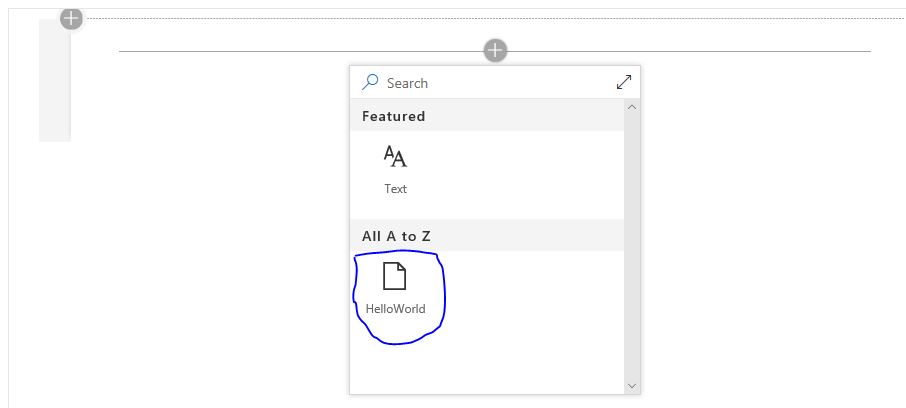
Below is how the web part looks like when added. I have edited it by clicking on the pencil button on the left side. You can see the custom properties.

Related Articles

SPFx Web Part Folder Structure



Sample program using TypeScript

Before going further, look here for some basic concepts of TypeScript.

Below is a sample program using TypeScript. Save this program with, say HelloWorld.ts

   
var firstname:string = "Akanksha"
console.log(firstname)

When compiled, this code will be converted to JavaScript and a new file is created in the same folder with the same name, but with .js extension (HelloWorld.js)

   
var value = "Hello World!!";
console.log(value);

Open NodeJS Command Prompt.
Go to the folder where you have saved your TypeScript file.
Write tsc HelloWorld.ts
Above code will compile your code in .js file.

Then Write node HelloWorld.js
Above code will execute .js file and displays the result. Remember to use .js as extension.

Sample AngularJS Application

Below is the sample code for AngularJS Application:

<!DOCTYPE html>
<html xmlns="http://www.w3.org/1999/xhtml">
<head>
    <script src="https://ajax.googleapis.com/ajax/libs/angularjs/1.5.2/angular.min.js"></script>
    <title>Hello</title>
</head>

<body ng-app="myapp">

    <div ng-controller="HelloWorldController">
        <h3>Hello {{hello.title}} !!</h3>
    </div>

    <script>
        angular.module("myapp", [])
        .controller("HelloWorldController", function ($scope) {
            $scope.hello = {};
            $scope.hello.title = "Akanksha";
        });
    </script>
</body>
</html>

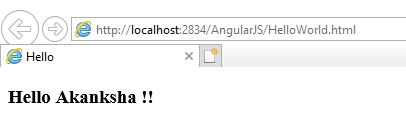
Below is the output of the above code when run in Internet Explorer. You can also use any other browser.

In the above code, we have first included the reference file to AngularJS in the HEAD section so that we can use it in our HTML page.

<head>
   <script src="https://ajax.googleapis.com/ajax/libs/angularjs/1.5.2/angular.min.js"></script>
   <title>Hello</title>
</head>

To bind HTML page to AngularJS, we have to include ng-app directive either in HTML tag or BODY tag. This helps HTML document to locate where AngularJS cod is located. Here we are creating an angular module named myapp.

<html ng-app = "myapp"></html> // OR
<body ng-app = "myapp"></body>

This is the View part of the AngularJS application that is displayed on HTML page and all HTML tags are included in this part. ng-controller tells AngularJS which controller to use with the current view. hello.title tells AngularJS to write the “model” value named hello.title to the HTML at this location.

<div ng-controller="HelloWorldController">
<h3>Hello {{hello.title}} !!</h3>
</div>

This is the Controller part of AngularJS application. This code registers a controller function HelloWorldController in myapp module. The controller function is registered in angular via angular.module().controller() function.

<script>
        angular.module("myapp", [])
        .controller("HelloWorldController", function ($scope) {
            $scope.hello = {};
            $scope.hello.title = "Akanksha";
        });
    </script>

The $scope parameter passed to the controller function is the model. The controller function adds a hello JavaScript object, and in that object it adds a title field.

Node.js Environment Setup

Below are the steps to setup the environment of Node.js on Windows:

    • We need two softwares to develop Node.js applications: Text Editor and Node.js binary installables.
    • Text Editor can be a Windows Notepad. We need to write our code in Notepad and save the file with .js extension.
    • The source code is simply JavaScript code.
    • We can install the latest version of Node.js from here. You can find the links for various Operating Systems and for 32-bit/64-bit operating systems.
    • For Windows, an .msi file will be downloaded. You can run the setup and install the software. By default, it will be installed at C:\Program files\nodejs location.
    • Now write the following code in a NotePad and save that file with the name hello.js. Let’s say you have saved this file at
      console.log("Hello, World!")
      
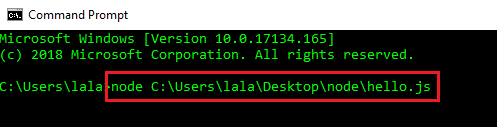
    • Open the Command Prompt on Windows and write the following code.
  • When you press Enter, you will see Hello, World! written on Command Prompt.

Congrats! You have just created your first NodeJS application.

Power Platform Academy

Start or Upgrade your Career with Power Platform

Learn with Akanksha

Python | Azure | AI/ML | OpenAI | MLOps

Design a site like this with WordPress.com
Get started