Let’s start with Power Apps.
I have created a SharePoint List named Guest Details with columns: Guest Name, Guest Address, Guest Phone and Occupation. I have also added some random data into it.
To create Power Apps, open this link in browser https://make.powerapps.com. If you already have an account, use that to login or you can also create a new one for trial purpose.
Once you login to Power Apps, click on Add –> New. Choose the type of App that you want to create. 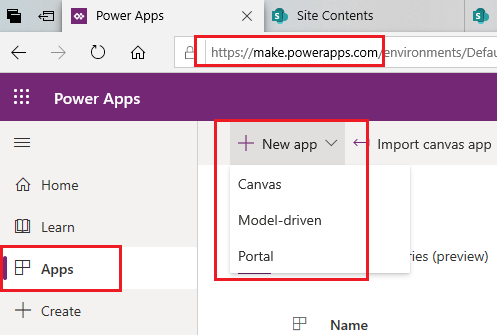
Let’s choose Canvas. You will be navigated to a page to choose the layout of your app: Mobile or Tablet. Enter the name of the app as well. Click on Create once done.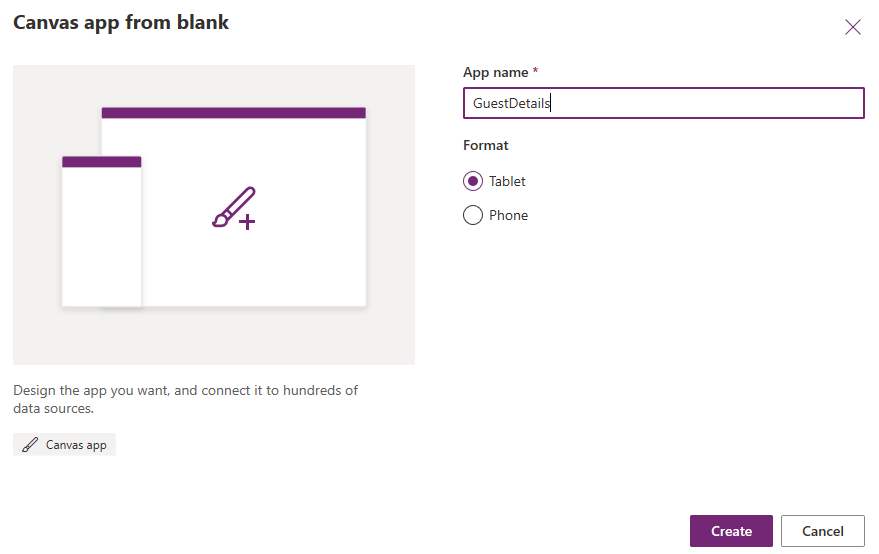
You will be navigated to a window from where you can start creating an app from scratch.
OR
Click on https://create.powerapps.com. You will be redirected towards Power Apps studio.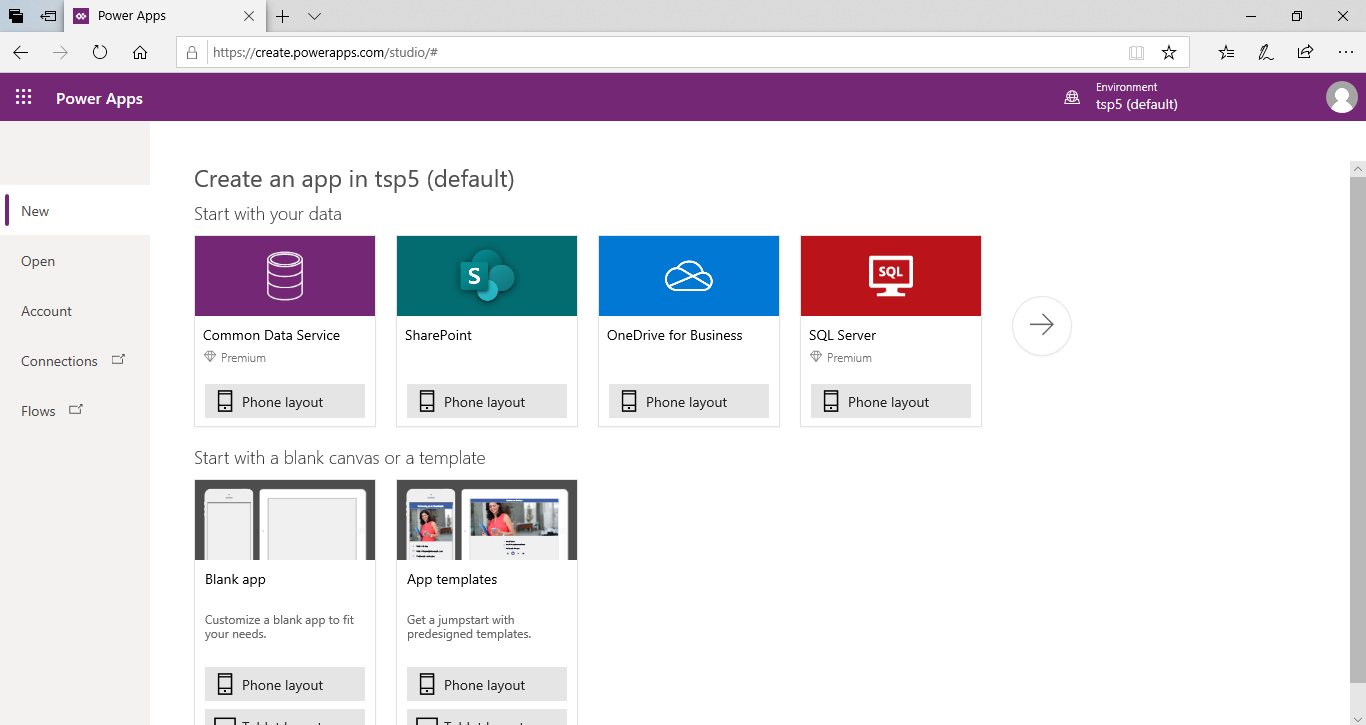
From here, you can choose the data that you want or the layout that you want. You can create a blank app and choose between Tablet or Phone layout or you can choose a data connection and create a Mobile layout.
This will give you few screens that are ready: Browse Screen, Detail Screen and Edit Screen. I am choosing this one as of now.
Next |
 Akanksha's Blog