Get User Input in ReactJS Application

We know that ReactJS is used to create the View part of our application.

In this article, we will create a TextBox and get that data in state, and use it to set the value property of the TextBox.

Create a new react application. Delete all the files from src folder EXCEPT index.js

Replace the existing code with the below code in index.js file

import React from 'react';
import ReactDOM from 'react-dom';

class App extends React.Component {
    state = { name: '' };
    render() {
        return (
            < div >
                Enter your name: <input type="text" value=   {this.state.name} onChange={e => this.setState({ name:e.target.value })} />
                <div>Hi {this.state.name}!</div>
            </div >
        );
    }
}

ReactDOM.render(<App />, document.getElementById('root'));

In this, whatever the user writes in the TextBox, it gets stored in state and then assigned to the value property of the TextBox.
We can then use this state value wherever we want. In this example, we are simply displaying it in another div.

Get Weather (Summer/Winter) using ReactJS Application

I came through below example in one of the articles on internet, so thought of mentioning it here. This example explains a lot of concepts of ReactJS.

In this, we will get the latitude of the current location of the user, based on that we display the season (winter or summer).

Create a new react application. Delete all the files from src folder except index.js. Create new files in src folder: Season.js, Loading.js and index.css.

Also install Semantic UI React package.

npm install --save semantic-ui-react

Include below link in index.html file

<link rel="stylesheet" href="https://cdnjs.cloudflare.com/ajax/libs/semantic-ui/2.4.1/semantic.min.css" >
index.js

Copy and paste below code in index.js file. User has to allow the application to access the location.

import React from 'react';
import ReactDOM from 'react-dom';
import Season from './Season';
import Loading from './Loading';
import './index.css';

class App extends React.Component {
    // initializing component state
    state = { lat: null, errMsg: '' };

    // initial data loading
    componentDidMount() {
        window.navigator.geolocation.getCurrentPosition(
            position => this.setState({ lat: position.coords.latitude }),
            err => this.setState({ errMsg: err.getMessage() })
        );
    }

    // custom method
    renderComponent() {
        if (this.state.errMsg && !this.state.lat) {
            return <div><b>Error: </b>{this.state.errMsg}</div>
        }
        else if (!this.state.errMsg && this.state.lat) {
            return <Season lat={this.state.lat} />
        }
        else {
            return <Loading message="Kindly allow us to access your location..." />
        }
    }

    render() {
        return (            
            <div>
                {this.renderComponent()}
            </div>

        );
    }
}

ReactDOM.render(<App />, document.getElementById('root'));
Season.js

Get the icon name and details from Semantic UI React Site. There are lots of icons available for use.
Copy and paste below code in below file

import React from 'react';
import ReactDOM from 'react-dom';
import './index.css';

// get the season based on latitude and current month
const getSeason = (lat, month) => {
    if (month > 2 && month < 9) { return lat > 0 ? 'summer' : 'winter';
    } else {
        return lat > 0 ? 'winter' : 'summer';
    }
}

// configuration 
const seasonConfig = {
    summer: {
        text: "It's hot!",
        iconName: 'sun'
    },
    winter: {
        text: "It's cold!",
        iconName: 'snowflake'
    }
}

// functional component
const Season = (props) => {
    const currentSeason = getSeason(props.lat, new Date().getMonth());
    const { text, iconName } = seasonConfig[currentSeason];
    return (
        <div className={`season-display ${currentSeason}`}>
            <i className={`massive icon-left ${iconName} icon`} />
            <h1>{text}</h1>
            <i className={`massive icon-right ${iconName} icon`} />
        </div>
    );
};

export default Season;
Loading.js

Copy and paste below code in this file

import React from 'react';
import ReactDOM from 'react-dom';
import { Loader, Dimmer } from 'semantic-ui-react';

// loading the Loader component
const Loading = props => {
    return (
        <Dimmer active>
            <Loader>{props.message}</Loader>
        </Dimmer>
    );
}

//setting default value of Loader component
Loading.defaultProps = {
    message: "Loading..."
};

export default Loading;
index.css

Copy and paste below code in index.css file

.icon-left{
    position: absolute;
    top: 10px;
    left: 10px;
}
.icon-right{
    position: absolute;
    bottom: 10px;
    right: 10px;
}
.season-display{
    display: flex;
    justify-content: center;
    align-items: center;
    height: 100vh;
}
.season-display.winter i{
    color: blue;
}
.season-display.summer i{
    color: orange;
}
.winter{
    background-color: aquamarine;
}
.summer{
    background-color: orange;
}

As it is January here and I am in Northern Hemisphere, it’s winters here!!
Below is the output of above code

Set default values for Props in ReactJS Components

When we define props in components, we usually pass values to them But what will happen if we do not pass any value? In this case, no data will be displayed.

There is sometimes a need when we want to specify a default value for properties of components just in case we forget to pass the values to the properties.

Let’s continue with this example where we have created a Comments component ad passed values in the properties.

index.js

Replace the original code with the below code.

import React from 'react';
import ReactDOM from 'react-dom';
import { Comment } from 'semantic-ui-react';
import Comments from './Comments';
import Approvalcard from './ApprovalCard';

const App = function () {
    return (
        // We will not pass the values in props for last Comments component
        <Comment.Group>
            <Approvalcard>
                <Comments user="Apoorv" time="May" commentData="Comment1" />
            </Approvalcard>
            <Approvalcard>
                <Comments user="Akanksha" time="Yesterday" commentData="Comment2" />
            </Approvalcard>
            <Approvalcard>
                <Comments />
            </Approvalcard>
        </Comment.Group>
    );
};

ReactDOM.render(<App />, document.getElementById('root'));
Comments.js

Replace the original code with the below code

import React from 'react';
import { Comment} from 'semantic-ui-react';
import faker from 'faker';

const Comments = function (props) {
    return (
            <Comment>
                <Comment.Avatar src={faker.image.avatar()} />
                <Comment.Content>
                    <Comment.Author as='a'>{props.user}</Comment.Author>
                    <Comment.Metadata>
                        <div>{props.time}</div>
                    </Comment.Metadata>
                    <Comment.Text>{props.commentData}</Comment.Text>
                    <Comment.Actions>
                        <Comment.Action>Reply</Comment.Action>
                    </Comment.Actions>
                </Comment.Content>
            </Comment>
    );
}

// defining default values for the properties
Comments.defaultProps={
    user:"User Name",
    time: "Now",
    commentData: "Comment"
};

export default Comments;

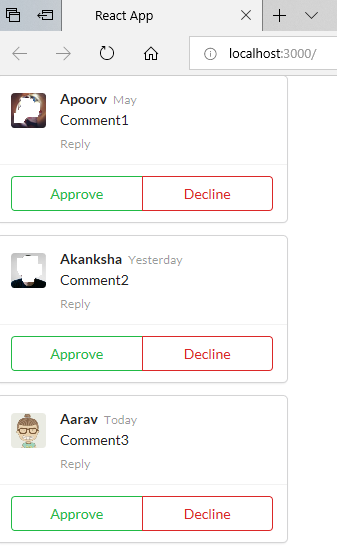
Below is the output of above code. You can see that the last Comment component has taken the default property values.

Know Version of ReactJS

Create a new react application. Delete all the files from src folder except index.js. Replace the code with the following code

import React from 'react';
import ReactDOM from 'react-dom';

class App extends React.Component {
    render(){
        return(
          <div>React version: {React.version}</div>
        );
    }
}

ReactDOM.render(<App />, document.getElementById('root'));

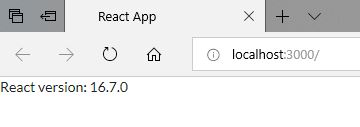
Below is the output of above code.

Output is subject to change as per the ReactJS version you are using.

setState() for State in ReactJS

      • We have seen what exactly a State is in ReactJS, how to initialize state data and update it.
      • setState() causes a component to re-render.
      • Before moving further, be aware of this that setState() function in ReactJS works in ASYNCHRONOUS fashion. That is, when we update state values, they are not immediately available for use.
      • Do not modify state directly, Use setState()
    this.state.value='Text'; is wrong. You can only use this in constructor
    this.setState({value: 'Text'}); is right
    • In this article, we will see ways to update state data.
    • There are two ways to update state data
      • Object based
      • Function based: We use Arrow Functions for this approch
index.js

Create a new application. Delete all files from src folder except index.js.
Below is the code that demonstrate both the approaches. Replace the code in index.js file with the below code.

import React from 'react';
import ReactDOM from 'react-dom';

class App extends React.Component {
    constructor(props) {
        super(props);
        this.state = { 
            funstr: 'Functional Original text!' , 
            objstr: 'ObjectBased Original String' 
        };
    }

    clickMeFA = () => {
        console.log('Functional based approach');
        console.log(this.state.funstr);
        this.setState(() => ({ 
            funstr: 'Functional Updated Text' 
            }),() => {
                console.log(this.state.funstr);
            });
    }

    clickMeOBA = () => {
        console.log('Object based approach');
        console.log(this.state.objstr);
        this.setState({ objstr: 'ObjectBased Updated Text' });
        console.log(this.state.objstr);
    }

    render() {
        return (
            <div>
                <button onClick={this.clickMeOBA}>Click Me     Objectbased</button>
                <button onClick={this.clickMeFA}>Click Me FuncBased</button>
            </div>
        );
    }
}

ReactDOM.render(<App />, document.getElementById('root'));

Below is the output of above code

Related Article

Event Handling in ReactJS: This article have another example related to setState()

Rendering content conditionally in ReactJS

In State in ReactJS, we have seen how to fetch the data in State object for the Component. But we have not seen how to display error message if latitude and longitude are not available.

Copy and paste below code in index.js file.

import React from 'react';
import ReactDOM from 'react-dom';

class App extends React.Component {
    constructor(props) {
        // super() is used to call the constructor os 
        super(props);

        // this is the only time we use direct assignment to state, 
        // that is at the initialization time
        this.state = { lat: null, long: null, errMsg:'' };

        window.navigator.geolocation.getCurrentPosition(
            position => {
                // update state data using setState() method
                this.setState({ lat: position.coords.latitude, long: position.coords.longitude });
            },
            err => {
                this.setState({ errMsg: err.message });
            }
        );
    }
    render() {
        // When Latitude and longitude is not fetched, we will show an error message
        if(this.state.errMsg && !this.state.long){
            return <div><b>Error: </b>{this.state.errMsg}</div>
        }

        // When we know Latitude and Longitude, then their values will be displayed
        if(!this.state.errMsg && this.state.long){
            return(
                <div>
                    <b>Latitude: </b>{this.state.lat}<br />
                    <b>Longitude: </b>{this.state.long}
                </div>
            );
        }

        // When the values are still loading
        if(!this.state.errMsg && !this.state.long){
            return<div>Loading...</div>
        }
    }
}

ReactDOM.render(<App />, document.getElementById('root'));

The output will be based on data fetched.

State in ReactJS

  • State is a JavaScript object that contains data for a component.
  • We can use State only in Class Components. We can use them in Functional Components by using hooks system.
  • State and props are two different things, so do not get confused between the two.
  • When we update State, the component is almost instantly rendered.
  • We should initialize State when the component is created.
  • State can ONLY be updated using the setState function.
Initialize State when the component is created
  • We use constructor() function to initialize the State.
  • This constructor() function is not related to ReactJS but is a JavaScript concept.
  • We define constructor() inside the class.
  • Whenever we create an instance of component, constructor() function is automatically and instantly called before anything else. Hence, this is the best way to initialize the State.
  • When we define constructor(), it automatically calls props object. This is the same props that we discussed earlier in Functional Component.
  • super()
    • Before doing anything else inside constructor(), we have to call a function super() and pass props in it.
    • We can see that our class extends functionality from React.Component base class. This base class has a constructor function that has the code for the component.
    • The constructor() that we define in our class will override the constructor of the base class. To make sure that the base class’ constructor() code still gets called, we use super(props).
    • If we do not call super(), we will get an error message “super() hasn’t been called“.
    • super() should be the first statement in the constructor().
index.js

Below is a code to demonstrate the State by getting Longitude and Latitude of your current location. We will be using only one file in src folder: index.js. Place the below code in index.js file.

import React from 'react';
import ReactDOM from 'react-dom';

class App extends React.Component {
    constructor(props) {
        // super() is used to call the constructor of parent class
        super(props);

        // this is the only time we use direct assignment to state, 
        // that is at the initialization time
        // we use null if we expect the value is either numerical or decimal
        this.state = { lat: null, long: null };

        window.navigator.geolocation.getCurrentPosition(
            position => {
                // update state data using setState() method
                this.setState({ lat: position.coords.latitude, long: position.coords.longitude });
            },
            err => console.log(err)
        );
    }
    render() {
        return (
            // this is how we use state data in our code            
            <div>
                <b>Latitude:</b> {this.state.lat}
                <b>Longitude:</b> {this.state.long}
            </div>
        );
    }
}

ReactDOM.render(<App />, document.getElementById('root'));

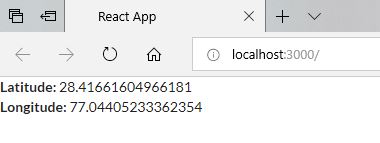
Below is the output of above code. It will change as per your location. Please note that you have to enable your location sharing for this example to work.

Class in ReactJS

  • Components are categorized in two types
    • Functional Components
    • Class-based Components
  • In previous article, we have seen only Functional Components. In this article, we will learn about Class-based components.
  • Class Components must be a JavaScript class
  • The Class should extend React.Component
  • Must define a render method that returns some amount of JSX

Let’s see how to create a class and display it on the page.

  • We will create a new app named classdemo
  • Take the reference from Environment Setup – ReactJS article
  • Delete all the files from src folder and create two new files in it: index.js and Comments.js. As of now, I am displaying the static values.
Comments.js

Paste the below code in this file

import React from 'react';
import { Comment } from 'semantic-ui-react';

class Comments extends React.Component {
    render() {
        return (
            <Comment>
                <Comment.Content>
                    <Comment.Author as='a'>Akanksha</Comment.Author>
                    <Comment.Metadata>                  
                        <div>Today</div>
                    </Comment.Metadata>
                    <Comment.Text>Nice Post!!</Comment.Text>
                    <Comment.Actions>
                        <Comment.Action>Reply</Comment.Action>
                    </Comment.Actions>
                </Comment.Content>
            </Comment>
        );
    }
}

export default Comments;
index.js

Paste the below code in this file

import React from 'react';
import ReactDOM from 'react-dom';
import { Comment } from 'semantic-ui-react';
import Comments from './Comments';

class App extends React.Component {
    render() {
       return (
        <Comment.Group>
             <Comments />
        </Comment.Group>
       );
    }
 }

ReactDOM.render(<App />, document.getElementById('root'));

Start the app from NodeJS Command Prompt.
Below is how the above application looks

Nesting custom component within another custom component in ReactJS

Till Props in ReactJS we have seen parent-child components and passing values from parent component to child component.

In this article, we will be learning how to insert one custom component withing another custom component. Lets continue with the example we created in Props article.

Let’s create something like

In above image, you can see that we have inserted the Comments within a Card, with two Buttons: Approve and Reject. The reference for the code is taken from Semantic UI React site.

ApprovalCard.js

Let us create a new file ApprovalCard.js in src folder. Paste the below code in it.

import React from 'react';
import { Card, Button } from 'semantic-ui-react';
import Comments from './Comments';

const ApprovalCard = function (props) {
    return (
        <Card>
            <Card.Content>                
                <div>{props.children}</div>
            </Card.Content>
            <Card.Content extra>             
                <div className='ui two buttons'>
                    <Button basic color='green'>
                        Approve
                    </Button>
                    <Button basic color='red'>
                        Decline
                    </Button>
                </div>
            </Card.Content>
        </Card>
    );
}

export default ApprovalCard;
Comments.js

We are not changing the code in this file. Below is the code for this file just for your reference.

import React from 'react';
import { Comment} from 'semantic-ui-react';
import faker from 'faker';

const Comments = function (props) {
    return (
            <Comment>
                <Comment.Avatar src={faker.image.avatar()} />
                <Comment.Content>
                    <Comment.Author as='a'>{props.user}          </Comment.Author>
                    <Comment.Metadata>                        
                        <div>{props.time}</div>
                    </Comment.Metadata>
                    <Comment.Text>{props.commentData}</Comment.Text>
                    <Comment.Actions>
                        <Comment.Action>Reply</Comment.Action>
                    </Comment.Actions>
                </Comment.Content>
            </Comment>
    );
}

export default Comments;
index.js

Below is the code

import React from 'react';
import ReactDOM from 'react-dom';
import { Comment } from 'semantic-ui-react';
import Comments from './Comments';
import Approvalcard from './ApprovalCard';

const App = function () {
    return (
        <Comment.Group>
            <Approvalcard>
                <Comments user="Apoorv" time="May" commentData="Comment1" />
            </Approvalcard>
            <Approvalcard>
                <Comments user="Akanksha" time="Yesterday" commentData="Comment2" />
            </Approvalcard>
            <Approvalcard>
                <Comments user="Aarav" time="Today" commentData="Comment3" />
            </Approvalcard>
        </Comment.Group>
    );
};

ReactDOM.render(<App />, document.getElementById('root'));

Components in ReactJS

    • A Component in ReactJS can be anything that can be placed on our application’s UI: a button, label, div tag, heading tag, etc.
    • Components can be categorized in two categories
      • Functional Components: We can use them when we want to show simple content to the user without a lot of logic behind it.
      • Class-based Components: We use this components for complex logic like if we want your application to respond to user input, or make a network request etc. Benefits are:
        • We can easily organize our code
        • Can use ‘state’ to handle user inputs
        • It understands lifecycle events like to do tasks when application starts
  • Component Nesting: We can show one component inside another another component.
  • Component Reusability: We can create a component which can be reused multiple times throughout the application.
  • Component Configuration: We should create a component that should be easy to configure.

Let’s create a sample application where we are creating a component in a separate file, and nesting it into another component.
We have already created a Sample Application. Let’s continue with this one.
We will be creating a Comments component using Semantic UI React. We will be generating the sample data using FakerJS.

Comments.js
  • Create a new file in src folder with the name Comments.js
  • Write the below code in this file. This is a Functional Component.
import React from 'react';
import { Comment } from 'semantic-ui-react';
import faker from 'faker';

const Comments = function () {
    return (
        <Comment>
            <Comment.Avatar src={faker.image.avatar()} />
            <Comment.Content>
                <Comment.Author as='a'>{faker.name.firstName()}</Comment.Author>
                <Comment.Metadata>
                   
<div>{faker.date.weekday()}</div>

                </Comment.Metadata>
                <Comment.Text>{faker.random.word()}</Comment.Text>
                <Comment.Actions>
                    <Comment.Action>Reply</Comment.Action>
                </Comment.Actions>
            </Comment.Content>
        </Comment>
    );
}

export default Comments;
  • export statement is used so that we can use this component in other files.
index.js

Place the below code in index.js file

import React from 'react';
import ReactDOM from 'react-dom';
import { Comment } from 'semantic-ui-react';
import Comments from './Comments';

const App = function () {
    return (
        <Comment.Group>
             <Comments />
             <Comments />
             <Comments />
        </Comment.Group>
    );
};

ReactDOM.render(<App />, document.getElementById('root'));
    • import Comments from ‘./Comments’ is used to import the data from Comments.js file.
    • This is how we are placing the Comments component in the file. We can REUSE a single component multiple times and NEST it under other components.
             
<Comment.Group>
   <Comments />
   <Comments />
   <Comments />
</Comment.Group>          
  • There should only be one parent element to return. If you try to return more than one parent component, you will get an error: JSX expressions must have one parent element.

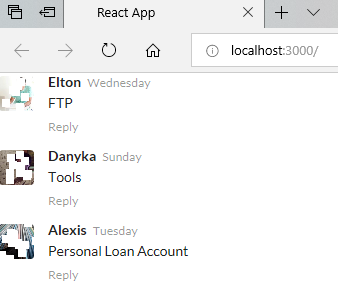
Below is the output of above code
You can also convert it into ES6 function syntax by using arrow function. We recommend using this syntax as it has added advantages like we ca use this keyword with arrow functions, etc.

// Using ES6 function syntax (arrow function syntax) to declare Functional Components
const Comments = () => {
  // same as above
}
Power Platform Academy

Start or Upgrade your Career with Power Platform

Learn with Akanksha

Python | Azure | AI/ML | OpenAI | MLOps

Design a site like this with WordPress.com
Get started