Sample Program in ReactJS

Let’s continue with our previous article: ReactJS Environment Setup where we have created a ReactJS application which has the default code, how to start and stop it, and various files that exist in the application.

Let’s change the default code in the application and write our own code to create an application. Start the application and do not close it. Whatever change you make in the code, once you save it, it will automatically gets reflected in the browser.

Follow the below steps:

  • Delete all the files in src folder.
  • Create a new file in src folder: index.js. The browser will display nothing as there is no code to display.
  • Write the following code in index.js file. import the necessary libraries or other dependencies.
// Import the React and ReactDOM libraries
import React from 'react';
import ReactDOM from 'react-dom';

// Create a React component. This is a function based component.
const App = function() {
    return <div>Hello World!</div>;
};

// Take the React component and display it on the screen. 
// There is div element with id='root' present in index.html in public folder.
ReactDOM.render(
    <App />,
    document.getElementById('root')
);

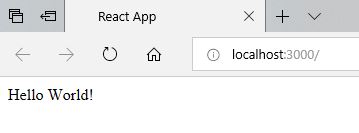
Below is the output of above code
Sample program using TypeScript

Before going further, look here for some basic concepts of TypeScript.

Below is a sample program using TypeScript. Save this program with, say HelloWorld.ts

   
var firstname:string = "Akanksha"
console.log(firstname)

When compiled, this code will be converted to JavaScript and a new file is created in the same folder with the same name, but with .js extension (HelloWorld.js)

   
var value = "Hello World!!";
console.log(value);

Open NodeJS Command Prompt.
Go to the folder where you have saved your TypeScript file.
Write tsc HelloWorld.ts
Above code will compile your code in .js file.

Then Write node HelloWorld.js
Above code will execute .js file and displays the result. Remember to use .js as extension.

Sample AngularJS Application

Below is the sample code for AngularJS Application:

<!DOCTYPE html>
<html xmlns="http://www.w3.org/1999/xhtml">
<head>
    <script src="https://ajax.googleapis.com/ajax/libs/angularjs/1.5.2/angular.min.js"></script>
    <title>Hello</title>
</head>

<body ng-app="myapp">

    <div ng-controller="HelloWorldController">
        <h3>Hello {{hello.title}} !!</h3>
    </div>

    <script>
        angular.module("myapp", [])
        .controller("HelloWorldController", function ($scope) {
            $scope.hello = {};
            $scope.hello.title = "Akanksha";
        });
    </script>
</body>
</html>

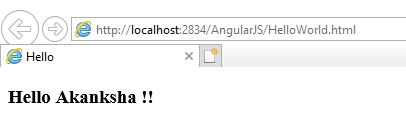
Below is the output of the above code when run in Internet Explorer. You can also use any other browser.

In the above code, we have first included the reference file to AngularJS in the HEAD section so that we can use it in our HTML page.

<head>
   <script src="https://ajax.googleapis.com/ajax/libs/angularjs/1.5.2/angular.min.js"></script>
   <title>Hello</title>
</head>

To bind HTML page to AngularJS, we have to include ng-app directive either in HTML tag or BODY tag. This helps HTML document to locate where AngularJS cod is located. Here we are creating an angular module named myapp.

<html ng-app = "myapp"></html> // OR
<body ng-app = "myapp"></body>

This is the View part of the AngularJS application that is displayed on HTML page and all HTML tags are included in this part. ng-controller tells AngularJS which controller to use with the current view. hello.title tells AngularJS to write the “model” value named hello.title to the HTML at this location.

<div ng-controller="HelloWorldController">
<h3>Hello {{hello.title}} !!</h3>
</div>

This is the Controller part of AngularJS application. This code registers a controller function HelloWorldController in myapp module. The controller function is registered in angular via angular.module().controller() function.

<script>
        angular.module("myapp", [])
        .controller("HelloWorldController", function ($scope) {
            $scope.hello = {};
            $scope.hello.title = "Akanksha";
        });
    </script>

The $scope parameter passed to the controller function is the model. The controller function adds a hello JavaScript object, and in that object it adds a title field.

Power Platform Academy

Start or Upgrade your Career with Power Platform

Learn with Akanksha

Python | Azure | AI/ML | OpenAI | MLOps

Design a site like this with WordPress.com
Get started