CRUD operations using REST API in SPFx with No JavaScript Framework

In this article, I will be giving you the code to write CRUD operations using REST API in SharePoint Framework Web Part using No JavaScript Framework.

I have a SharePoint List names Registration Details which has 4 columns Full Name (internal name is Title), Address, Email ID (internal name EmailID) and Mobile.

Create a SPFx web part and choose No JavaScript Framework at the end. Below is the file structure of the web part.

Open RestApiDemoWebPart.ts file. Make the changes in this file as per below code:

import { Version } from '@microsoft/sp-core-library';
import { BaseClientSideWebPart, IPropertyPaneConfiguration, PropertyPaneTextField } from '@microsoft/sp-webpart-base';
import { escape } from '@microsoft/sp-lodash-subset';
import styles from './RestApiDemoWebPart.module.scss';
import * as strings from 'RestApiDemoWebPartStrings';
import { SPHttpClient, SPHttpClientResponse } from '@microsoft/sp-http';

export interface IRestApiDemoWebPartProps {
description: string;
}

interface IRegistrationDetails {
Title: string;
Address: string;
Mobile: number;
EmailID: string;
}

export default class RestApiDemoWebPart extends BaseClientSideWebPart<IRestApiDemoWebPartProps> {
private Listname: string = "Registration Details";
private listItemId: number = 0;
public render(): void {
this.domElement.innerHTML = `
<div>
<table>
<tr>
<td>Full Name</td>
<td><input type="text" id="idFullName" name="fullName" placeholder="Full Name.."></td>
</tr>
<tr>
<td>Address</td>
<td><input type="text" id="idAddress" name="address" placeholder="Address.."></td>
</tr>
<tr>
<td>Mobile Number</td>
<td><input type="text" id="idPhoneNumber" name="mobile" placeholder="Mobile Number.."></td>
</tr>
<tr>
<td>Email ID</td>
<td><input type="text" id="idEmailId" name="emailid" placeholder="Email ID.."></td>
</tr>
</table>
<table>
<tr>
<td><button class="${styles.button} find-Button">Find</button></td>
<td><button class="${styles.button} create-Button">Create</button></td>
<td><button class="${styles.button} update-Button">Update</button></td>
<td><button class="${styles.button} delete-Button">Delete</button></td>
<td><button class="${styles.button} clear-Button">Clear</button></td>
</tr>
</table>
<div id="tblRegistrationDetails"></div>
</div>
`;
this.setButtonsEventHandlers();
this.getListData();
}

private setButtonsEventHandlers(): void {
const webPart: RestApiDemoWebPart = this;
this.domElement.querySelector('button.find-Button').addEventListener('click', () => { webPart.find(); });
this.domElement.querySelector('button.create-Button').addEventListener('click', () => { webPart.save(); });
this.domElement.querySelector('button.update-Button').addEventListener('click', () => { webPart.update(); });
this.domElement.querySelector('button.delete-Button').addEventListener('click', () => { webPart.delete(); });
this.domElement.querySelector('button.clear-Button').addEventListener('click', () => { webPart.clear(); });
}

private find(): void {
let emailId = prompt("Enter the Email ID");
this.context.spHttpClient.get(`${this.context.pageContext.web.absoluteUrl}/_api/web/lists/getbytitle('${this.Listname}')/items?$select=*&$filter=EmailID eq '${emailId}'`, SPHttpClient.configurations.v1)
.then(response => {
return response.json()
.then((item: any): void => {
document.getElementById('idFullName')["value"] = item.value[0].Title;
document.getElementById('idAddress')["value"] = item.value[0].Address;
document.getElementById('idEmailId')["value"] = item.value[0].EmailID;
document.getElementById('idPhoneNumber')["value"] = item.value[0].Mobile;
this.listItemId = item.value[0].Id;
});
});
}

private getListData() {
let html: string = '<table border=1 width=100% style="border-collapse: collapse;">';
html += '
<th>Full Name</th>
<th>Address</th>
<th>Email ID</th>
<th>Phone Number</th>
';
this.context.spHttpClient.get(`${this.context.pageContext.web.absoluteUrl}/_api/web/lists/getbytitle('${this.Listname}')/items`, SPHttpClient.configurations.v1)
.then(response => {
return response.json()
.then((items: any): void => {
console.log('items.value: ', items.value);
let listItems: IRegistrationDetails[] = items.value;
console.log('list items: ', listItems);

listItems.forEach((item: IRegistrationDetails) => {
html += `
<tr>
<td>${item.Title}</td>
<td>${item.Address}</td>
<td>${item.EmailID}</td>
<td>${item.Mobile}</td>
</tr>
`;
});
html += '</table>
';
const listContainer: Element = this.domElement.querySelector('#tblRegistrationDetails');
listContainer.innerHTML = html;
});
});
}

private save(): void {
const body: string = JSON.stringify({
'Title': document.getElementById('idFullName')["value"],
'Address': document.getElementById('idAddress')["value"],
'EmailID': document.getElementById('idEmailId')["value"],
'Mobile': document.getElementById('idPhoneNumber')["value"],
});

this.context.spHttpClient.post(`${this.context.pageContext.web.absoluteUrl}/_api/web/lists/getbytitle('${this.Listname}')/items`,
SPHttpClient.configurations.v1,
{
headers: {
'Accept': 'application/json;odata=nometadata',
'X-HTTP-Method': 'POST'
},
body: body
}).then((response: SPHttpClientResponse): void => {
this.getListData();
this.clear();
alert('Item has been successfully Saved ');
}, (error: any): void => {
alert(`${error}`);
});
}

private update(): void {
const body: string = JSON.stringify({
'Title': document.getElementById('idFullName')["value"],
'Address': document.getElementById('idAddress')["value"],
'EmailID': document.getElementById('idEmailId')["value"],
'Mobile': document.getElementById('idPhoneNumber')["value"],
});

this.context.spHttpClient.post(`${this.context.pageContext.web.absoluteUrl}/_api/web/lists/getbytitle('${this.Listname}')/items(${this.listItemId})`,
SPHttpClient.configurations.v1,
{
headers: {
'Accept': 'application/json;odata=nometadata',
'IF-MATCH': '*',
'X-HTTP-Method': 'PATCH'
},
body: body
}).then((response: SPHttpClientResponse): void => {
this.getListData();
this.clear();
alert(`Item successfully updated`);
}, (error: any): void => {
alert(`${error}`);
});
}

private delete(): void {
if (!window.confirm('Are you sure you want to delete the latest item?')) {
return;
}

this.context.spHttpClient.post(`${this.context.pageContext.web.absoluteUrl}/_api/web/lists/getbytitle('${this.Listname}')/items(${this.listItemId})`,
SPHttpClient.configurations.v1,
{
headers: {
'Accept': 'application/json;odata=nometadata',
'IF-MATCH': '*',
'X-HTTP-Method': 'DELETE'
}
}).then((response: SPHttpClientResponse): void => {
alert(`Item successfully Deleted`);
this.getListData();
this.clear();
}, (error: any): void => {
alert(`${error}`);
});
}

private clear(): void {
document.getElementById('idFullName')["value"] = "";
document.getElementById('idAddress')["value"] = "";
document.getElementById('idEmailId')["value"] = "";
document.getElementById('idPhoneNumber')["value"] = "";
}

protected get dataVersion(): Version {
return Version.parse('1.0');
}

protected getPropertyPaneConfiguration(): IPropertyPaneConfiguration {
return {
pages: [
{
header: {
description: strings.PropertyPaneDescription
},
groups: [
{
groupName: strings.BasicGroupName,
groupFields: [
PropertyPaneTextField('description', {
label: strings.DescriptionFieldLabel
})
]
}
]
}
]
};
}
}

Error: Cannot find module ‘ControlStrings’ in SPFx Web Part

When you run your web part on Workbench or after deployment of web part, you can get the error: Cannot find module ‘ControlStrings’

If you encounter this error, make sure to add below code in config.json file

"ControlStrings": "node_modules/@pnp/spfx-controls-react/lib/loc/{locale}.js"

Error: Property ‘myRef’ does not exist on type ‘MyComponent

We face below error while using ref in our ReactJS application.

Error: Property ‘myRef’ does not exist on type ‘MyComponent

To resolve this error, declare your ref variable inside the class component

export default class MyComponent extends React.Component<IMyComponentProps, any> {
  private myRef;
  constructor(props) {
    super(props);
    this.myRef = React.createRef();
  }
}

SPFx Web Part Folder Structure

Let’s continue with the article: Sample Web Part in SPFx

In this article, we will understand the folder structure of SPFx client-side web part.

Below are the important files and their description.

HelloWorldWebPart.ts
  • HelloWorldWebPart.ts file is placed in src\webparts\helloworld folder.
  • This is where the execution begins.
  • There is a property defined as interface called IHelloWorldWebPartProps which is used to define custom property types of the web part.
  • All the WebPart classes extends BaseClientSideWebPart class that is our HelloWorldWebPart class will also extend this base class.
  • BaseClientSideWebPart implements basic functionality required to build a web part.
  • HelloWorldWebPart class contains the render() method which renders the web part inside the DOM element.
  • HelloWorldWebPart class contains the property pane where all the web part properties are defined: getPropertyPaneConfiguration.
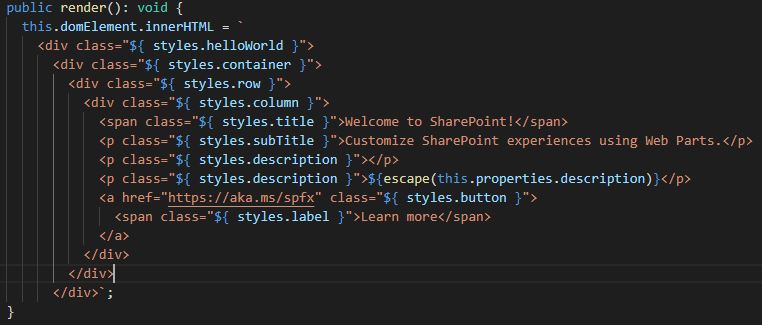
render() method
  • The DOM element where the web part should be rendered is available in the render() method.
  • This method is used to render the web part inside the DOM element.
  • We can access web part properties in render method by using this.properties.<value>. For example: ${escape(this.properties.description)}
  • We are performing HTML escape on the property’s value to ensure a valid string.
  • If the property value does not return a valid string, you need to explicitly convert the value in a valid string. For example: ${escape(JSON.parse(this.properties.toggle.toString()))}
getPropertyPaneConfiguration
  • The properties are defined in HelloWorldWebPart.ts file in getPropertyPaneConfiguration.
  • we can add multiple properties here.
  • By default, it has only one property: description
WebPart Manifest File: HelloWorldWebPart.manifest.json
  • Web Part metadata is stored in this file.
  • This can be version details, id, component type, display name, description, icon, default properties etc.
  • Every web part should have one manifest file.

Sample Web Part in SPFx

Below are the steps to create a sample web part (Hello World) in SharePoint Framework. Mae sure to setup the environment before proceeding.

  • Open Command Prompt
  • Navigate to the directory where you want to create the web part
  • Type the following command
    yo @microsoft/sharepoint
  • You will be prompted to enter few details:
    • The suggested solution name will be same as your directory name. Press enter if you want the same name as your solution name. You can change it if you want.
    • Select SharePoint Only (latest) and press enter.
    • Select Use the current folder to place the files of your project.
    • Type N as we do not want our solution to be deployed immediately to all sites without running any feature deployment or adding apps in sites. Press Enter.
    • Type N as we our solution does not contain any unique permission.
    • Select WebPart as we want to create a web part
    • Accept the default web part name. You can also choose the name you want. Remember that this is the Web Part name. We entered Solution name in the first step.
    • Accept the default web part description. You can give description of your choice.
    • Select the JavaScript framework you want use. You can either choose React or Knockout. You also have the option to not select any JavaScript framework. In this demo, I am not selecting any JavaScript framework.
    • Press Enter.
  • Now, Yeoman installs the required dependencies and scaffolds the solution file along with the web part. This will take some time.
  • Once done, you will get below message.
Test and Preview your SPFx Web Part

Once you get the above message, now install the developer certificate with the following command. This is a one time activity and will be applicable to the complete development environment.

gulp trust-dev-cert

Preview your web part with the following command. This will open the workbench where you can add your web part on the page and preview it.

gulp serve

This command executes a series of gulp tasks to create a local, node-based HTTPS server on localhost:4321 and launches your default browser to preview web parts from your local dev environment.

SharePoint Workbench is a developer design surface that enables you to quickly preview and test web parts without deploying them in SharePoint. SharePoint Workbench includes the client-side page and the client-side canvas in which you can add, delete, and test your web parts in development.

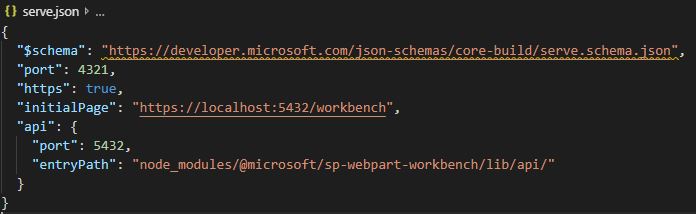
Workbench details are saved in serve.json file in config folder.

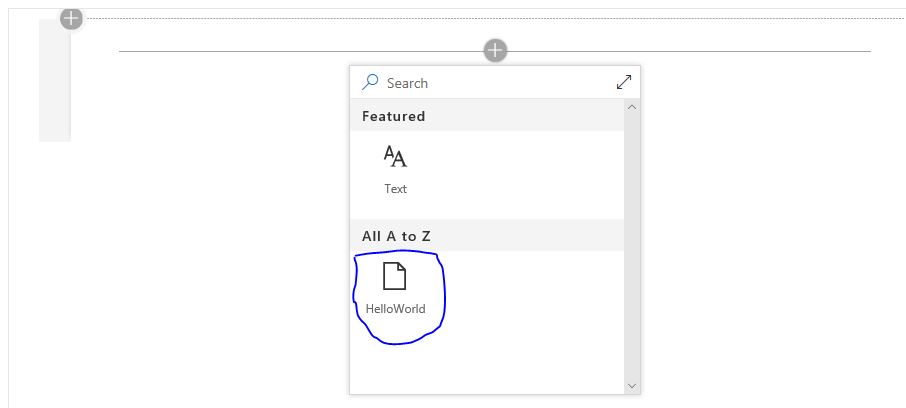
Once the gulp serve command is executed, the local workbench is launched. To add the web part on the modern page, select the + icon. Select the web part you want to add and test. Now you can see the web part.

Below is how the web part looks like when added. I have edited it by clicking on the pencil button on the left side. You can see the custom properties.

Related Articles

SPFx Web Part Folder Structure


Environment Setup for SPFx

Setup Office 365 tenant
  • Create App Catalog: We need App Catalog to upload and deploy web parts.
  • Create Developer Site: SharePoint Site Collection or site to test the web part.
  • Workbench: It is a developer design surface that enables you to quickly preview and test web parts without deploying them in SharePoint. SharePoint workbench can be accessed from any SharePoint site in your tenancy using following URL:
    https://your-sharepoint-site/_layouts/workbench.aspx
Setup development environment
  • Install a code editor
  • Install NodeJs (The current supported LTS version of NodeJS for the SharePoint Framework is both 8.x and 10.x. Notice that 9.x , 11.x and 12.x versions are currently NOT supported with SharePoint Framework development).
  • At this time, Node.js v12.x is the Active LTS version listed on the Node.js homepage as the default download. To download Node.js v10.x, use the Node.js > Downloads > Previous Releases page.
  • For SharePoint Server 2016, recommended version of Node is 8.x.x
  • For SharePoint Server 2019 and SharePoint Online it is 10.x.x
  • My Node version is 10.16.0 and gulp version is 3.9.1
  • Install Yeoman and Gulp.
    • These are the packages from NPM package manager and are basically tools which we use for SharePoint Framework development.
    • Yeoman is an open source client-side scaffolding tool for web applications. Yeoman runs as a command-line interface written for Node.js and combines several functions into one place, such as generating a starter template, managing dependencies, running unit tests, providing a local development server, and optimizing production code for deployment.
    • Gulp is a cross-platform, streaming task manager that lets developers automate many development tasks.
    • Once you install NodeJs, open Command Prompt and type the following command.
      npm install -g yo 
      npm install -g gulp
  • Install Yeoman SharePoint Generator
    • It help you to quickly create a SharePoint client-side solution project with the right toolchain and project structure. Enter the following command to install it.
      npm install -g @microsoft/generator-sharepoint

Introduction to SharePoint Framework

  • As per Microsoft Docs, SharePoint Framework (SPFx) is a page and web part model that provides full support for client-side SharePoint Development, easy integration with SharePoint data and support for open source tooling.
  • It runs in the context of current user and connection in the browser. There are no iFrames for the customization (JavaScript is embedded directly to the page).
  • The controls are rendered in the normal page DOM.
  • The controls are responsive and accessible by nature.
  • It enables the developer to access the lifecycle in addition to render, load, serialize and deserialize, configuration changes and more.
  • It is framework-agnostic. You can use any JavaScript framework that you like: React, Handlebars, Knockout, Angular etc.
  • The toolchain is based on common open source client development tools such as npm, TypeScript, Yeoman, webpack and gulp.
  • Performance is reliable.
  • End users can use SPFx client-side solutions that are approved by the tenant administrators or their delegates on all sites, including self-service team, group or personal sites.
  • SPFx web parts can be added to both classic and modern pages.
  • SharePoint client-side web parts are controls that appear inside a SharePoint page but run locally in the browser.
JavaScript Injection/Script Editor Web Part
  • Pros
    • You can paste JavaScript in Script Editor web part and have that JavaScript execute when the page renders.
    • It is simple and rudimentary but effective.
    • It runs in the same browser context as the page and is in the same DOM hence it can interact with other controls on the page.
    • It is also relatively performant and easy to use.
  • Cons
    • While you can package your solution so that end users can drop the control onto the page, you can’t easily provide configuration options.
    • The end user can edit the page and modify the script, which can break the web part.
    • Script Editor web part is not marked as “Safe for Scripting“. Most self-service site collections (my sites, team sites, group sites) have a feature known as “NoScript” enabled. Technically it is the removal of Add/Customize Pages(ACP)  permission  in SharePoint. This means that the Script Editor web part will be blocked from executing on these sites.
SharePoint Add-in Model
  • Pros
    • The current option that run in NoScript sites is the add-in model.
    • This implementation creates an iFrame where the actual experience resides and executes.
    • As it is external to the system and has no access to the current DOM/connection, it is easier for information workers to trust and deploy.
    • End users can install add-ins on NoScript sites.
    • iFrames do have stronger security, which can be useful for you (your page is inaccessible by other controls on the page) and for the end user (the control has no access to their connection to Office 365).
  • Cons
    • They run in an iFrame. iFrames are slower than the Script Editor web parts, as it requires a new request to another page. The page has to go through authentication and authorization, make its own calls to get SharePoint data, load various JavaScript libraries, and more.
    • The iFrame boundary makes it more difficult to create responsive designs and inherit CSS and theming information.
Power Platform Academy

Start or Upgrade your Career with Power Platform

Learn with Akanksha

Python | Azure | AI/ML | OpenAI | MLOps

Design a site like this with WordPress.com
Get started