state & props in ReactJS

Below is a sample program where we can use state and props among class components and functional components.

I have created a new folder named Person.

Create a new file named Person.js in Person folder and below code in it. This is a functional component and we are using props in this. props.children displays the value that we pass between child component tags in the parent component.

import React from 'react';

const Person = (props) => {
    return (      
        <div>
          My name is {props.name} and I stay in {props.location}!  {props.children}.
        </div>
    );
}

export default Person;

Paste the below code in App.js file.

import React from 'react';
import ReactDOM from 'react-dom';
import './App.css';
import Person from './Person/Person';

class App extends React.Component {
  state = {
    person:[
      {name: "Paul", location: "New York"},
      {name: "David", location: "Atlanta"},
      {name: "Raj", location: "London"}
    ],
    otherDetails: "I am working as Software Developer"
  };

  render(){
    return (
      <div>
        <Person name={this.state.person[0].name} location={this.state.person[0].location} />
        <Person name={this.state.person[1].name} location={this.state.person[1].location} >{this.state.otherDetails}</Person>
        <Person name={this.state.person[2].name} location={this.state.person[2].location} />
      </div>
    );
  }
}

export default App;
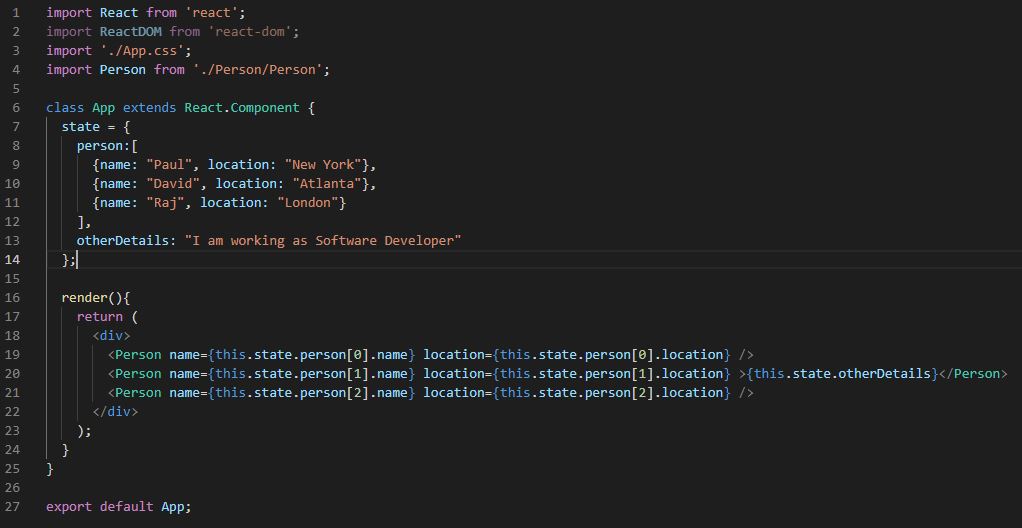

Below is the output of above code

setState() for State in ReactJS

      • We have seen what exactly a State is in ReactJS, how to initialize state data and update it.
      • setState() causes a component to re-render.
      • Before moving further, be aware of this that setState() function in ReactJS works in ASYNCHRONOUS fashion. That is, when we update state values, they are not immediately available for use.
      • Do not modify state directly, Use setState()
    this.state.value='Text'; is wrong. You can only use this in constructor
    this.setState({value: 'Text'}); is right
    • In this article, we will see ways to update state data.
    • There are two ways to update state data
      • Object based
      • Function based: We use Arrow Functions for this approch
index.js

Create a new application. Delete all files from src folder except index.js.
Below is the code that demonstrate both the approaches. Replace the code in index.js file with the below code.

import React from 'react';
import ReactDOM from 'react-dom';

class App extends React.Component {
    constructor(props) {
        super(props);
        this.state = { 
            funstr: 'Functional Original text!' , 
            objstr: 'ObjectBased Original String' 
        };
    }

    clickMeFA = () => {
        console.log('Functional based approach');
        console.log(this.state.funstr);
        this.setState(() => ({ 
            funstr: 'Functional Updated Text' 
            }),() => {
                console.log(this.state.funstr);
            });
    }

    clickMeOBA = () => {
        console.log('Object based approach');
        console.log(this.state.objstr);
        this.setState({ objstr: 'ObjectBased Updated Text' });
        console.log(this.state.objstr);
    }

    render() {
        return (
            <div>
                <button onClick={this.clickMeOBA}>Click Me     Objectbased</button>
                <button onClick={this.clickMeFA}>Click Me FuncBased</button>
            </div>
        );
    }
}

ReactDOM.render(<App />, document.getElementById('root'));

Below is the output of above code

Related Article

Event Handling in ReactJS: This article have another example related to setState()

State in ReactJS

  • State is a JavaScript object that contains data for a component.
  • We can use State only in Class Components. We can use them in Functional Components by using hooks system.
  • State and props are two different things, so do not get confused between the two.
  • When we update State, the component is almost instantly rendered.
  • We should initialize State when the component is created.
  • State can ONLY be updated using the setState function.
Initialize State when the component is created
  • We use constructor() function to initialize the State.
  • This constructor() function is not related to ReactJS but is a JavaScript concept.
  • We define constructor() inside the class.
  • Whenever we create an instance of component, constructor() function is automatically and instantly called before anything else. Hence, this is the best way to initialize the State.
  • When we define constructor(), it automatically calls props object. This is the same props that we discussed earlier in Functional Component.
  • super()
    • Before doing anything else inside constructor(), we have to call a function super() and pass props in it.
    • We can see that our class extends functionality from React.Component base class. This base class has a constructor function that has the code for the component.
    • The constructor() that we define in our class will override the constructor of the base class. To make sure that the base class’ constructor() code still gets called, we use super(props).
    • If we do not call super(), we will get an error message “super() hasn’t been called“.
    • super() should be the first statement in the constructor().
index.js

Below is a code to demonstrate the State by getting Longitude and Latitude of your current location. We will be using only one file in src folder: index.js. Place the below code in index.js file.

import React from 'react';
import ReactDOM from 'react-dom';

class App extends React.Component {
    constructor(props) {
        // super() is used to call the constructor of parent class
        super(props);

        // this is the only time we use direct assignment to state, 
        // that is at the initialization time
        // we use null if we expect the value is either numerical or decimal
        this.state = { lat: null, long: null };

        window.navigator.geolocation.getCurrentPosition(
            position => {
                // update state data using setState() method
                this.setState({ lat: position.coords.latitude, long: position.coords.longitude });
            },
            err => console.log(err)
        );
    }
    render() {
        return (
            // this is how we use state data in our code            
            <div>
                <b>Latitude:</b> {this.state.lat}
                <b>Longitude:</b> {this.state.long}
            </div>
        );
    }
}

ReactDOM.render(<App />, document.getElementById('root'));

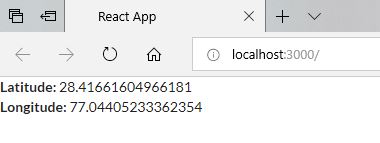
Below is the output of above code. It will change as per your location. Please note that you have to enable your location sharing for this example to work.

Power Platform Academy

Start or Upgrade your Career with Power Platform

Learn with Akanksha

Python | Azure | AI/ML | OpenAI | MLOps

Design a site like this with WordPress.com
Get started