Know Version of ReactJS

Create a new react application. Delete all the files from src folder except index.js. Replace the code with the following code

import React from 'react';
import ReactDOM from 'react-dom';

class App extends React.Component {
    render(){
        return(
          <div>React version: {React.version}</div>
        );
    }
}

ReactDOM.render(<App />, document.getElementById('root'));

Below is the output of above code.
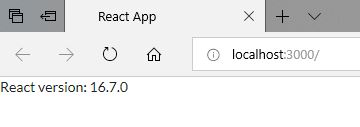
Output is subject to change as per the ReactJS version you are using.

Version Setting in List

You can enable version settings for the list items from here. You can track the changes that you make in the list items and restore the older versions of the items. By default, version is disabled. To turn on the version, you must have Full Control or Contribute permission.

  • Content Approval: Select Yes, if you want the list items to be approved before submitting them.
  • Version History: Select Yes to create version of the item each time an item is edited in the list.
  • Keep the following number of versions: Enter the number of versions you want to retain for the list item. For example, if you enter 5 in this box, SharePoint will retain latest 5 versions of the list item and will delete all the old versions.
  • Keep drafts for the following number of approved versions: This option is enabled when content approval is selected as Yes. You can select these numbers of draft or approved version of the list items.
  • Draft Item Security: This section is used to determine who can view the draft of the items that are not yet approved. These options are enabled only when the content approval is set to Yes.

Continue reading “Version Setting in List”

Power Platform Academy

Start or Upgrade your Career with Power Platform

Learn with Akanksha

Python | Azure | AI/ML | OpenAI | MLOps

Design a site like this with WordPress.com
Get started